Browse from the Pen Drive Linux Sitemap category sections below and discover the freedom and flexibility of Virtual Machine Emulation, Live Linux and Windows portable operating system computing and the process of booting from USB.
BIOS USB Boot Settings
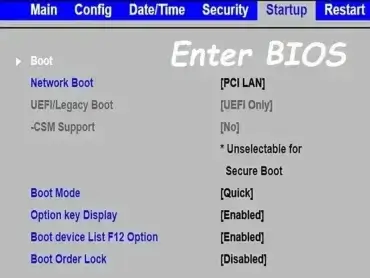
UEFI and BIOS USB boot settings, boot manager, boot menu, and system hardware options for Award, Phoenix, AMI firmware based motherboard BIOSes.
This category covers boot manager access, boot menu key functions, and essential BIOS/UEFI settings for popular firmware types like Phoenix, Award, and AMI. Learn how to configure your system to boot from USB flash drives, external hard disks, or live Linux distributions. Whether you're creating a bootable installer or troubleshooting a system that won’t recognize your USB device, you'll find solutions tailored to both legacy BIOS and modern UEFI systems. Ideal for users working with DIY builds, legacy hardware, or multiboot setups.
Bootable USB Creator Software
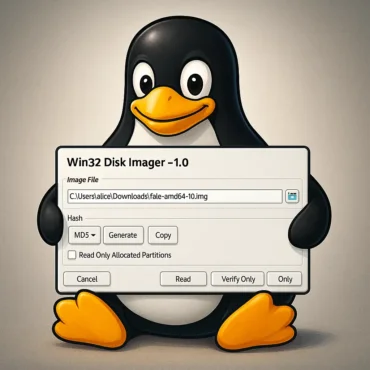
Looking for the best way to create a bootable USB drive? This category features a curated collection of the most reliable bootable USB creator software for Windows and Linux. These tools make it easy to turn ISO files into bootable media, whether you're installing an operating system, running a portable Live Linux environment, or building a recovery and diagnostic toolkit.
From simple ISO to USB utilities to advanced multiboot solutions, the software listed here can help you boot from USB on almost any PC. Many of these tools also function as a Windows media creation tool, allowing you to install or repair Windows directly from a USB flash drive.
Featured Bootable USB Creator Tools
Below you'll find some of the most popular and trusted tools for creating bootable USB drives. These include both single ISO writers and multiboot USB creators that let you run multiple operating systems from one device.What is a Bootable USB Creator?
A bootable USB creator is a software utility designed to convert a standard USB flash drive into a bootable device. By writing an ISO or IMG file to the drive, these tools allow your computer to start up (boot) from USB instead of the internal hard drive. This makes it possible to install operating systems like Windows or Linux, run live environments without installing anything, troubleshoot system issues, recover data, or perform antivirus scans.Multiboot vs Single ISO USB Tools
Some USB creation tools are designed to handle one operating system at a time, while others support multiboot USB functionality.- Single ISO tools write one operating system per USB drive. These are simple and ideal for quick installations.
- Multiboot USB tools let you store and boot multiple ISO files from a single USB device, making them perfect for advanced users, technicians, and system recovery toolkits.
How to Create a Bootable USB Drive
Creating a bootable USB is typically straightforward:- Download the ISO file for the operating system or tool you want to use.
- Launch a bootable USB creator tool from the list below.
- Select your USB drive and choose the ISO file.
- Click create and wait for the process to complete.
- Reboot your PC and boot from USB using BIOS or UEFI settings.
Why Use a Bootable USB?
Bootable USB drives are faster, more portable, and more versatile than traditional CDs or DVDs. They are commonly used to:- Install Windows or Linux operating systems
- Run portable Live Linux systems without installation
- Repair or recover a broken system
- Scan for viruses and malware outside the main OS
- Backup or clone hard drives
Create Bootable USB Drives
Create Bootable USB Drives for Windows, Linux, and system recovery tools using simple walkthrough tutorials designed for beginners and advanced users alike. This category serves as a complete hub for learning how to make a bootable USB drive from ISO files, whether you are installing an operating system, running a Live USB environment, or building a portable repair toolkit.
Inside, you will find guides covering everything from simple ISO to USB creation using popular tools, to more advanced methods like multiboot USB setups, persistent storage, and manual USB boot configuration using command line tools. Tutorials are available for Windows, Linux, and macOS, so you can create a bootable USB from virtually any system.
Learn how to properly format USB drives, choose the right filesystem (FAT32, NTFS, exFAT), and ensure compatibility with both BIOS and UEFI boot modes. You will also discover how to run full operating systems directly from USB, including portable Windows environments and Live Linux distributions.
Whether you want to install an OS, recover data, repair a system, or carry a portable computing environment, these bootable USB tutorials provide everything you need to get started with fast, reliable USB booting.
Get Started Using Linux
New to Linux? This beginner friendly guide helps users transition from Windows to Linux with ease. Learn essential Linux commands, desktop setup tips, and configuration techniques for Ubuntu, Linux Mint, Fedora, and more. Perfect for first time users looking to build confidence and customize their new Linux environment.
Linux Boot Commands
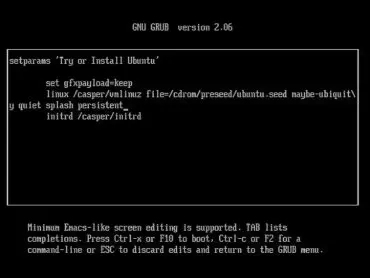
Linux boot commands, also known as cheat codes or kernel parameters, are powerful startup options used to troubleshoot, repair, and optimize Linux systems during boot. These parameters are especially useful when booting from USB drives on different hardware, fixing display issues, enabling persistence, or recovering from boot failures.
Troubleshooting Boot Problems
Many Linux boot issues can be solved by adding simple kernel parameters during startup. These are commonly used to fix hardware compatibility problems, graphics issues, and boot failures.- Black screen or no display issues
- System freezes during boot
- USB drive not detected at startup
- Compatibility issues with older hardware
Advanced Boot Options
Advanced Linux boot commands allow deeper control over how the system loads. These are useful for system recovery, performance tuning, and diagnostic booting.- Booting Linux directly into RAM for faster performance
- Single-user and rescue mode startup
- Debug and diagnostic boot modes
- Custom kernel parameter configurations
Persistence and Live USB Features
Some boot commands enable persistence, allowing changes to be saved on a Live USB environment. This is essential for portable Linux systems.- Enable persistent storage on USB drives
- Save system changes across reboots
- Configure overlay and live filesystem behavior
Linux Distribution Boot Guides
Each Linux distribution supports its own set of boot parameters and cheat codes. Select your distribution below for specific instructions:Why Linux Boot Commands Matter
These boot parameters are essential tools for system administrators, developers, and users running Linux from USB environments. They help ensure compatibility across different machines, reduce boot failures, and provide advanced control over system startup behavior. Whether you are repairing a system, testing Linux distributions, or running a portable operating system from USB, these cheat codes give you direct control over the boot process.Virtual Machine Emulation
Use Virtual Machine Emulation to run Linux on Windows or Windows on Linux using tools like VirtualBox or VMware. Boot a USB in a (VM) Virtual Machine, emulate operating systems on a pendrive, and test software safely.