You can use this Pen Drive Linux Persistent USB File Creator to make a Persistent Ubuntu USB from Windows: Easily make a casper-rw persistent file or writable overlay file for Ubuntu and Ubuntu based distributions. This tool works from within Windows, letting you quickly create a loopback filesystem image (Overlay Image) that saves and restores Ubuntu changes while booted from a live USB. With persistence enabled, your live Ubuntu USB can remember system settings, installed applications, and personal files across reboots.
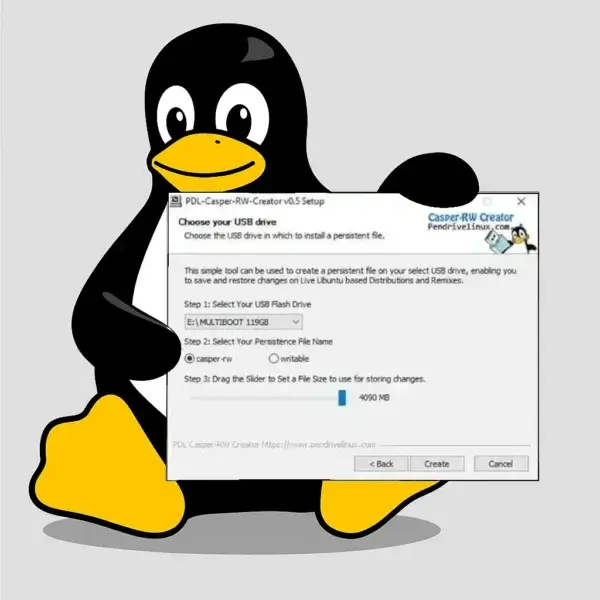
This is one of the easiest ways to create Ubuntu persistence from Windows without Linux commands or partitioning utilities.
What is Casper-RW Persistence?
Casper-rw is a special file or partition used with Ubuntu based live USB drives. Also called a persistent overlay image, it acts as a writable virtual block device. A casper-rw (read/write) file enables your live Ubuntu USB to save settings, installed software, and personal files between sessions.
While running a live Ubuntu, Xubuntu, Lubuntu, Kubuntu, or Linux Mint bootable USB, this feature allows the system to behave more like a full installation. Note: kernel upgrades or full system upgrades cannot be performed inside a persistent overlay.
Persistence is ideal for users who want a portable Linux environment, whether traveling or running Ubuntu on multiple computers. This works with tools like Universal USB Installer and YUMI Multiboot USB Creator. Note that UUI and YUMI exFAT already automate persistence setup for Ubuntu 20.04+ and newer versions.
Terms Explained
- Live USB Drive: A portable USB containing a bootable Linux OS. Boot Ubuntu without installing on the internal hard drive.
- Persistence: Save files, apps, and settings across reboots. Without it, changes are lost when restarting.
- Casper: The component of Ubuntu live systems handling USB booting.
- Casper-rw: A file or partition added to the USB for a writable overlay.
- Writable: Required for Ubuntu 20.04, 22.04, 24.04, and newer derivatives.
- Overlay / Loopback File: A single file (ext2/ext3/ext4) acting as a filesystem image for persistence.
Comparison: casper-rw vs writable vs live-rw
| Feature | casper-rw | writable | live-rw |
|---|---|---|---|
| Used By | Ubuntu 19.10 and older | Ubuntu 20.04, 22.04, 24.04 and derivatives | Debian Live systems |
| File or Partition Name | casper-rw | writable | live-rw |
| Overlay Filesystem Format | ext2/ext3/ext4 loop file | ext4 recommended | ext2/ext3/ext4 loop file |
| Supports Saving Changes | Yes | Yes | Yes |
| Compatibility | Legacy Ubuntu persistence | Modern Ubuntu persistence standard | Debian persistence only |
| Maximum File Size (FAT32) | 4GB limit | 4GB limit (ext4/NTFS supports larger) | 4GB limit |
Why Use Casper-RW?
Casper-rw persistence is perfect for users who want a portable, fully customizable Ubuntu environment. You can:
- Install and keep applications across reboots.
- Save personal files, scripts, and documents directly to the USB.
- Customize desktop settings, themes, and preferences.
- Carry a secure Linux environment anywhere.
File size considerations: FAT32 limits persistence files to 4GB. Use ext4 or NTFS to allow larger overlays.
Casper-RW Persistent File Creator
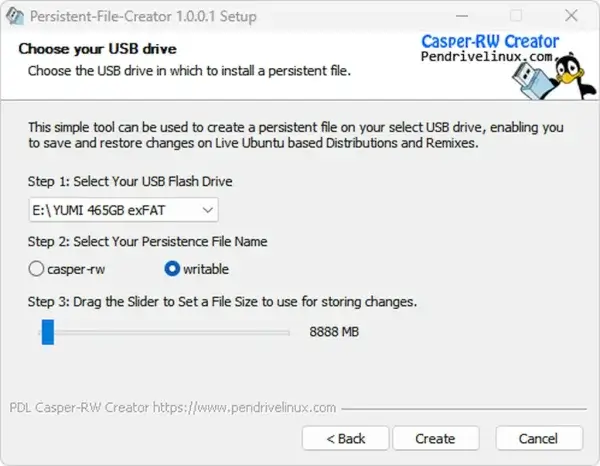
The Persistent File Creator tool lets you create casper-rw or writable loopback files directly from Windows. No Linux commands (dd, mkfs.ext4) or partition edits are needed.
Source Code – SHA-256: 69116a284e1d56b8a06730902bc0a5d440463a78d1620df4df1d500066d0dceb
Important: Ubuntu 20.04+ requires the file to be named writable. Ubuntu 19.10 and older use casper-rw.
How to Make a Casper Persistent Overlay File
- Download Persistence File Creator and run it.
- Select your USB Flash Drive.
- Choose casper-rw or writable.
- Set the desired size.
- Click Create.
Note: The persistence file must remain in the root directory of your USB drive to work at boot, though it can be moved after creation.
Booting and Using a Persistent Overlay
After creating your persistence file, boot your Ubuntu Live USB with persistence enabled. How Ubuntu loads the writable overlay depends on your boot menu and USB creation tool.
Enable Persistence at Boot
- At the boot menu, press F6.
- Press ESC to edit the boot string.
- Add persistent at the end of the boot parameters.
- Press Enter to boot with persistence enabled.
Tip: Tools like UUI and YUMI exFAT automatically add persistence for you.
Using Persistence
A persistent overlay allows you to:
- Save and restore personalized settings
- Keep installed software and system tweaks
- Retain documents, media, and configuration files
Limitations: Do not upgrade kernels or perform full system upgrades. Kernel updates remain outside the overlay and may break boot. Persistence is ideal for files, apps, and user settings.
Tips for Better Persistence Performance
- Use a USB 3.0 / 3.2 flash drive or portable SSD for faster read/write.
- Use ext4 or NTFS to allow persistence files larger than 4GB.
- Lightweight desktops (XFCE, LXQt) improve performance on USB.
- Use the latest LTS versions: Ubuntu 22.04, 24.04, or Linux Mint 21+ for best compatibility.
Casper-RW Persistent File FAQ
What is the purpose of a persistent live USB?
A persistent live USB lets you save files, settings, and installed apps across reboots.
How does Casper-RW work?
Casper-RW stores changes inside a writable overlay file or partition.
What is the difference between casper-rw and writable?
Ubuntu 20.04+ uses writable; older versions use casper-rw.
Can I upgrade Ubuntu using persistence?
No. Kernel or full system upgrades may break the live USB.
What is the maximum size of a casper-rw file?
FAT32 limits files to 4GB; ext4 or NTFS supports larger files.
Can I move the casper-rw file?
Yes, but it must remain in the root directory.
How do I boot with persistence enabled?
Select the persistent option or append persistent manually at boot.
What about Debian live USB persistence?
Debian uses a file named live-rw.
Do I need to reformat my USB?
No. Just ensure free space to add the persistence file.
Can YUMI or UUI create a persistent Ubuntu USB?
Yes, both support persistent storage for Ubuntu live USBs.
Final Thoughts
Creating a persistent live USB for Ubuntu and its derivatives lets you carry your OS and personal environment anywhere. Casper-RW or writable persistence file overlays save settings, apps, and files across reboots. With the Persistent File Creator, setting up persistence from Windows is simple and fast.
Plan your overlay size carefully, understand the limitations, and you'll have a fully portable Ubuntu environment ready for modern laptops, desktops, or travel.