Create a bootable USB drive from ISO files with Universal USB Installer (UUI), free bootable USB creation software for Windows and Linux. UUI lets you create bootable USB drives for Linux Live distributions, Windows installation media, system repair and recovery tools, antivirus utilities, cybersecurity tools, disk cloning, forensics, and more. It prepares the USB drive and configures the required boot files so your computer can start directly from the USB device.
It also supports modern UEFI and legacy BIOS systems and can create persistent Linux Live USB drives where persistence is supported. UUI Py extends Universal USB Installer with native Windows and Linux support and additional tools for VM testing, and managing your bootable USB drives.
Want to compare other approaches? Browse our bootable USB creator software guide for multiboot tools and single-image writers.
"Why waste time with five different thumb drives in your pocket, when you can consolidate your whole multiboot toolkit into one place?"
What is Universal USB Installer?
Universal USB Installer (UUI) is a free bootable USB creator. It can create Linux live USB drives, Windows installation media, recovery tools, antivirus rescue drives, and multiboot USB toolkits from ISO files.
Instead of carrying several USB sticks, you can keep multiple operating systems, installers, recovery utilities, backup tools, and diagnostic software together on a single USB flash drive.
UUI can also be used to install, boot, and run Windows 11 directly from USB via VHDx files, acting as a Windows to Go alternative for Windows 11/10.
UUI Py: The New Cross Platform Version
UUI Py is the newer cross platform version of Universal USB Installer. Written in Python, it runs natively on both Windows and Linux and adds new tools for creating, testing, and managing bootable USB drives.
UUI Py can detect and work with USB drives that were already prepared by Universal USB Installer, YUMI, or Ventoy. This makes it possible to work with an existing multiboot USB drive without needing to start over by preparing and reformatting the device.
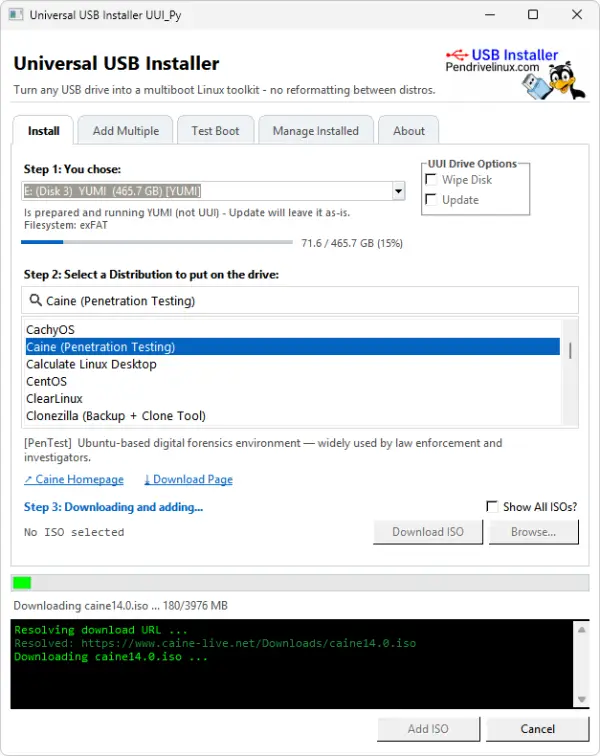
What's New in UUI Py?
- Windows and Linux: Same codebase runs natively on either platform without WINE.
- Works with existing prepared drives: Auto detects and works with bootable USB drives prepared by UUI, YUMI, or Ventoy.
- Automatic ISO downloads: Download supported ISO distributions directly onto your select drive (No need to store them elsewhere and then copy them over).
- Batch Mode: Browse and add multiple ISO files to a USB drive in one operation.
- Test Boot without Restarting: Use a portable QEMU VM to boot test an ISO or even your entire bootable USB drive without restarting your computer.
- USB management: View all installed items, add more bootable files, and easily remove items you no longer need.
- Distro Descriptions: In addition to providing project home page, and download links, it also provides a brief description of each ISO distribution or tool. This makes it easy to learn about new distros at a glance.
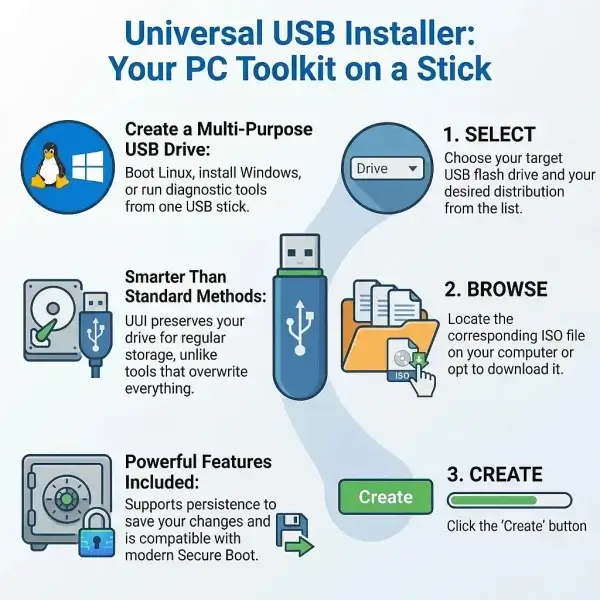
UUI Py truly is the Ultimate USB Installer. It still retains its simple and unique three step workflow while adding cross platform support, and a tabbed interface with several additional tools for working with existing or freshly created bootable USB drives.
System Requirements: Windows 10 or 11, or a modern version of Linux.
Changelog:uui_py.py-1.0.0.2: Ventoy updated to 1.1.18 (Linux and Windows). Ventoy's own, unmodified release files are now used as-is: the newest are picked automatically. Drives prepared by YUMI Py (YUMI/ folder) or plain Ventoy: persistence entries in ventoy.json now use the drive's actual organizing folder. After Wipe Disk the wiped drive is re detected and re selected.
uui_py.py-1.0.0.1: Added animated spinner and drive detection notification. Added ability to store some application settings across sessions.
Download UUI Py
Supporting UUI? If you already shop on Amazon and find this tool useful, the easiest ways to support this project is by starting your purchase through our Amazon affiliate link. We're offered a tiny kickback on qualifying purchases made during your visit, simply for the referral, at no cost to you. It's a Win-Win situation. ~ Thank you!
To run UUI Py on Windows, simply download the executable above and then double click the .exe to launch the application. It is standalone, so no installation is required.
Important: Preparing and formatting a USB drive will erase existing data. Always verify that you have selected the correct USB device before performing an operation that writes to or formats the drive.
Run UUI Py on Linux
UUI Py runs natively on Linux as a standalone application. Two Linux builds are available to provide compatibility with both current and older distributions.
If you're unsure which build applies to your system, try the standard build first. If it does not launch because your system's glibc version is too old, use the legacy build instead.
- Standard build - For current Linux distributions using glibc 2.35 or newer.
- Legacy Linux build - For older Linux distributions using glibc 2.17 or newer.
- Open a terminal, typically with Ctrl+Alt+T.
- Download the build that matches your system:
# Standard build wget https://pendrivelinux.com/downloads/Universal-USB-Installer/uui_py-1.0.0.2 # Legacy Linux compatible build wget https://pendrivelinux.com/downloads/Universal-USB-Installer/uui_py-1.0.0.2-legacy - Make the downloaded file executable:
chmod +x uui_py* - Launch the application:
sudo ./uui_py-1.0.0.2or, for the legacy build:
sudo ./uui_py-1.0.0.2-legacy
To check your Linux distribution's glibc version, run ldd --version in a terminal. The installed version is shown on the first line.
Once UUI Py launches, and has detected your drives, you can select your USB flash drive from the dropdown. You can create and manage your bootable USB drives directly from Linux.
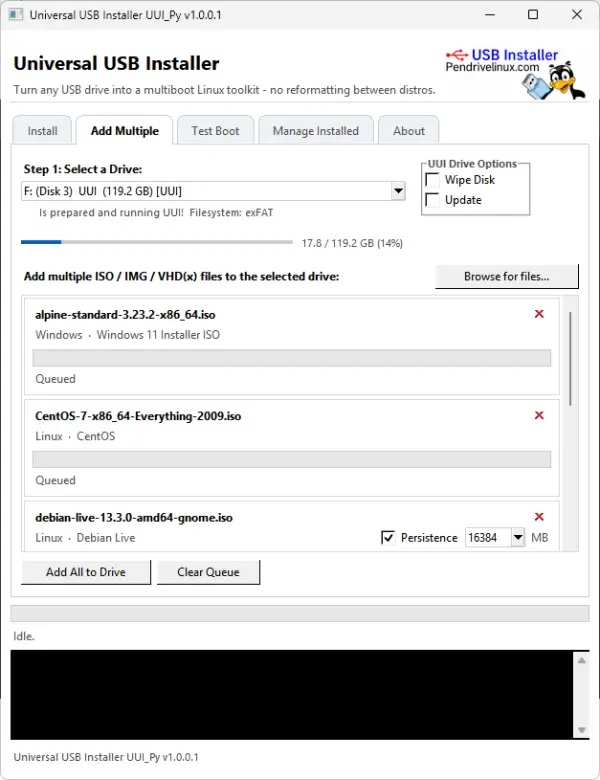
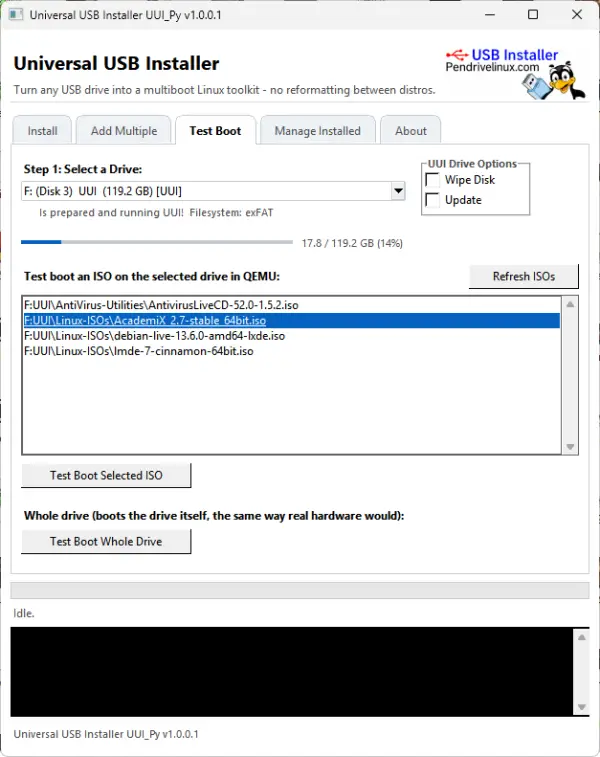
Universal USB Installer (Classic Version)
The documentation below mainly covers the classic, well established version of Universal USB Installer for Windows. Known for its signature three step workflow, this live USB creator has enabled millions of users to quickly flash ISO files, set up persistent storage for portable Linux operating systems, and create Windows USB installers.
Download Universal USB Installer
System Requirements: Windows 11, 10, 8, or 7. Classic UUI may also run on Linux through WINE.
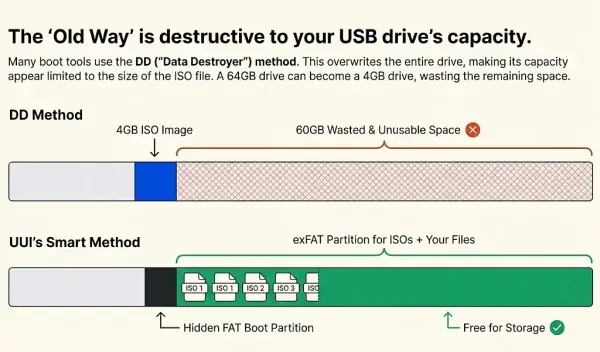
File Size Limit: None in practice when using the default exFAT storage filesystem. Individual ISO files can exceed 4GB, with the practical limit determined by the available capacity of your USB drive.
⚠️ WARNING: Backup Your Data: Preparing a USB device can erase existing data. When you choose the Prepare this Device option, all volumes and partitions on the selected disk, including hidden partitions, may be wiped. Always back up any files you wish to keep before preparing a USB drive.
Latest version: 2.0.4.0 - updated July 26, 2026. See full changelog ↓
How to Create a Bootable USB Drive
A bootable USB drive is a USB flash drive configured so a computer can start an operating system, installer, recovery environment, or other bootable software directly from the USB device. Universal USB Installer makes it easy to create a bootable USB from an ISO file without manually configuring bootloaders or using command-line tools.
With UUI, you can create a bootable USB drive for Windows installation media, Linux live distributions, antivirus and recovery tools, diagnostic utilities, and other bootable ISO files. The resulting USB drive can support both legacy BIOS and modern UEFI systems, depending on the operating system and boot configuration.
What You Need
Hardware:
- 8GB+ USB pendrive (fast SSD solid state USB thumb drive recommended)
- Computer with a BIOS/UEFI that can boot from USB
Software:
- Universal-USB-Installer-2.0.4.0.exe toolkit to make a bootable USB drive (downloaded above)
- Windows 11, 10, 8, or 7 operating system
- A selection of your favorite Windows or Linux ISO files and Live system tools
Important: The tool will show drives detected by Windows as either removable media (USB Drive) or a fixed (Local Disk). See the recommended list of some of the fastest and best USB flash drives to use with this tool.
Create the Bootable USB
Use these simple steps to create a bootable USB drive from an ISO file with Universal USB Installer.
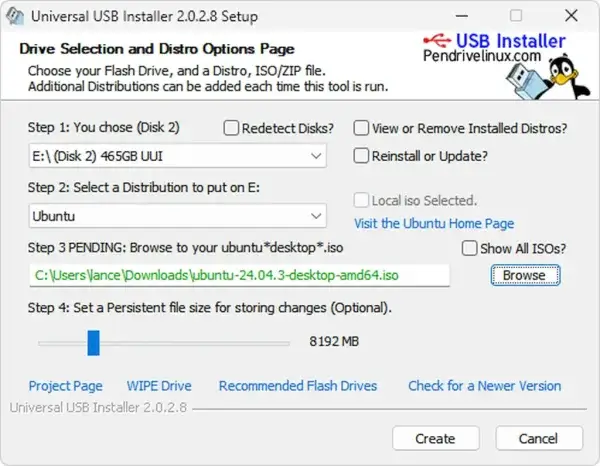
- Select your target flash drive - Choose your USB drive from the list and tick the box to prepare the disk.
- Choose a distribution - Select your operating system or tool from the dropdown list.
- Browse to your ISO - Locate the ISO file on your computer, or choose to download it directly.
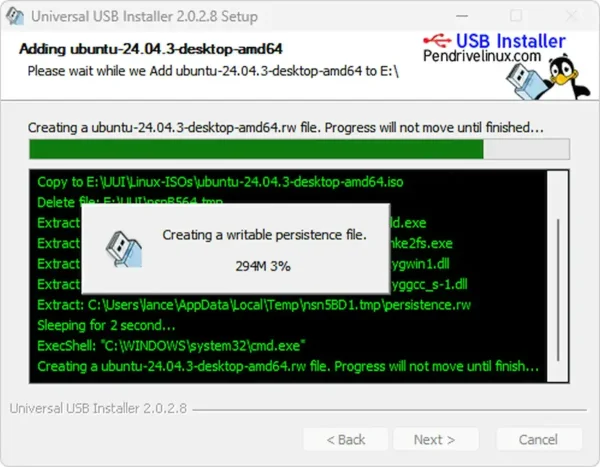
Optionally set a persistence file size to use for storing changes persistently during reboots - Click Create - The tool will format, prepare, and copy the files to your drive.
How to Boot from USB
Once your bootable USB drive has been created, restart your computer and select the USB drive as the boot device.
- Access BIOS/UEFI Settings - Restart your computer and access BIOS during system POST by pressing a hotkey such as F2, F12, Delete, or Esc. Refer to your device's manual for the correct key.
- Set USB as First Boot Device - In the Boot section, set the USB drive as the first boot option, then save your changes (usually F10) and exit.
- Select an OS from the Boot Menu - Your computer will boot from the USB drive into the boot menu. Select the operating system or tool you wish to run and press Enter.
USB Boot Drive Preparation Options
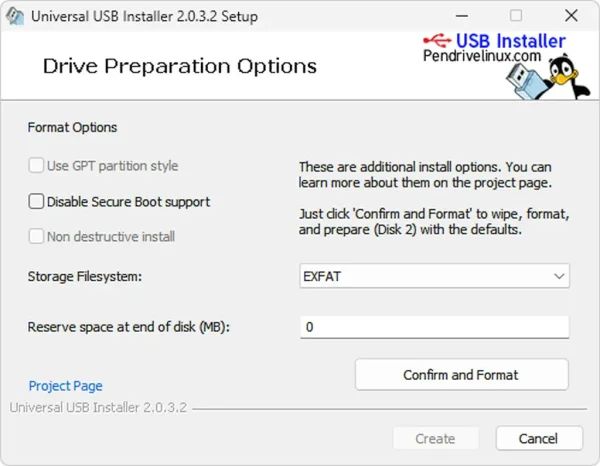
UUI includes built in drive preparation controls, giving you more flexibility over how your USB device is formatted and configured before installation. While most users can simply click Confirm and Format using the defaults, advanced users can customize the setup to better match their system requirements.
- Use GPT Partition Style - Prepares the USB using the GUID Partition Table instead of traditional MBR. GPT may be required for certain modern UEFI based systems.
- Disable Secure Boot Support - Installs the device without Secure Boot compatibility components. Useful on older systems or environments where Secure Boot is not required.
- Non Destructive Install - Attempts to preserve existing data on the device while adding the boot structure. (Currently greyed out and not yet functional.)
- Storage Filesystem Selection (NTFS, exFAT, FAT32) - Choose how the main ISO storage partition is formatted. exFAT is selected by default for broad compatibility and large file support.
- Reserve Space at End of Disk (MB) - Allocates unused space at the end of the drive for future partitioning. Set to 0 to let UUI use the full device capacity.
Note: Some advanced options may currently appear greyed out as they are not yet implemented.
Key Features
Beyond basic ISO-to-USB creation, Universal USB Installer includes several features that make it a more capable and flexible bootable USB maker for both everyday and advanced use cases.
Persistent Live USB Storage Support
This persistence feature allows you to save changes and restore them on subsequent boots. Ubuntu based Casper persistence works with FAT32, NTFS, or exFAT formatted drives. Starting with version 2.0.1.6, the USB drive is formatted with an exFAT filesystem, making it possible to use a larger than 4GB casper-rw or live-rw persistent block file. Currently supporting up to 40GB persistence.
Recent Debian Live releases changed how persistence is detected and mounted at boot. As of version 2.0.3.1, Debian Live persistence works correctly using a persistence file labeled persistence containing a valid persistence.conf configuration. For a complete walkthrough covering Debian Live persistence setup, larger persistence files, partition based persistence, and troubleshooting, see: How to Create a Debian Live USB with Persistence.
Drag and Drop ISO Files onto USB
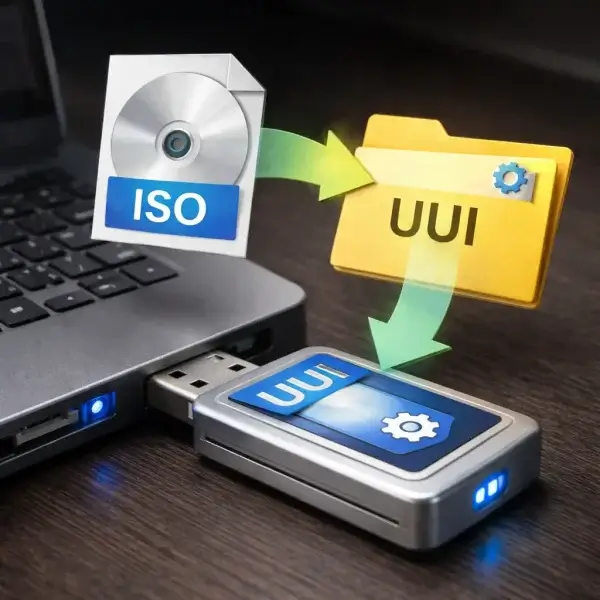
Instead of relaunching UUI to add more distributions, you can drag additional ISO, IMG, WIM, VHD(x), VDI.vtoy, and EFI files from any folder on your computer and drop them onto any folder under the UUI folder on your flash drive. You can also create your own folders within the UUI folder for storage. During bootup, the system will automatically populate the menu entries for newly discovered items.
Drag and drop is supported so long as you don't need persistence and do not need the tool to track your installs for possible removal later.
Secure Boot Support
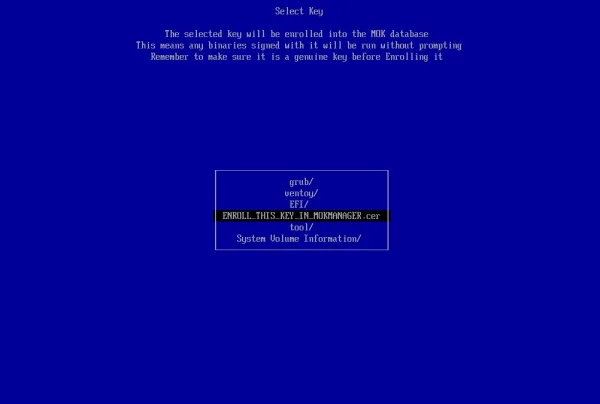
Yes, Secure Boot is supported. Simply select "VTOYEFI" and then the option to "Enroll_This_Key_In_MokManager.cer" during startup.
ISO Boot Options Explained
When starting an ISO from a bootable USB drive made with Universal USB Installer, you may see more than one way to boot it. This is normal. Different computers and ISO files sometimes need different startup methods. If one option doesn't work, simply reboot and try another.
Standard Boot (Default): This is the normal way an ISO is started. It uses the ISO's own built-in startup instructions, just like booting from a CD or DVD. For most systems and ISOs, this option works right away and should always be tried first. If it fails, the problem is usually related to firmware compatibility (BIOS or UEFI), not the USB drive itself.
GRUB2 Boot Mode: Use this option when Standard Boot does not work. Instead of relying on the ISO's startup code, this mode uses the GRUB2 bootloader to launch the system. This option is especially useful when a Linux ISO shows a blank screen, the system reboots unexpectedly, or you need access to advanced boot menus.
MEMDISK Boot Mode: This option loads the ISO completely into system memory (RAM) before starting it. It works best for small Linux live systems, rescue and recovery tools, and WinPE and lightweight utility ISOs. Because everything runs from memory, the USB flash drive does not need to stay inserted after startup and can be used to boot multiple systems simultaneously.
Helpful Tip: If an ISO refuses to boot using one method, that doesn't mean it's broken. Different PCs behave differently. Trying another boot option usually solves the problem.
Supported ISO Files and Distributions
This bootable USB maker supports a wide range of ISO files - from Linux live USB distributions and multiboot USB toolkits to Windows 11 installers and antivirus rescue environments. Almost any Live ISO file can be made to boot from USB. Note that this list is not all inclusive.
More Live ISOs, USB Windows Installers, portable Linux distributions, and system tools will be added as time permits. Let me know about any unlisted Live Linux distributions that should be included or version revisions, and I will do my best to update the tool to support them.
FAQ and Troubleshooting
Excluding a Drive from Detection
To exclude drives from being detected, simply create a blank text file named excludedrive.txt and place it at the root of the drive.
Persistent Block and File Storage Support
The persistence feature works with most Arch Linux, Fedora, Ubuntu, and Debian based distributions like Kali Linux that utilize a Debian persistent block file and label named persistence, and hold a persistence.conf file containing / Union.
Forcing Undetected ISO Files
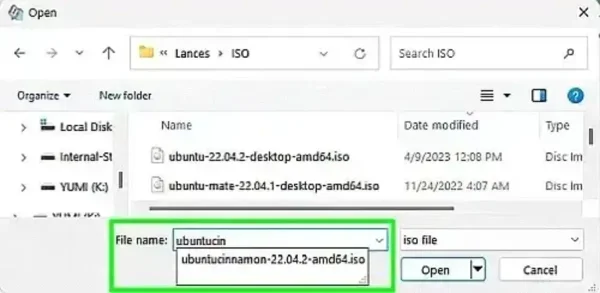
If an ISO filename does not appear when browsing for a selected distribution, you can try to force the selection of that ISO file. This is useful in situations where, for example, you know that a distribution like Cinnamon is Ubuntu-based, but an installable entry for it does not exist yet.
- Select Ubuntu for the distribution to install.
- When browsing to the ISO file, begin to type ubuntucinnamon into the file name: box.
- Select the filename from the dropdown as its name is auto-populated.
- Click Open to override and force the selection.
Is Universal USB Installer Safe?
Yes. Universal USB Installer has been downloaded millions of times and has been actively maintained since 2008 - predating Rufus, Ventoy, and YUMI. It was created to be useful and free of viruses, malware, or anything intentionally malicious. Being open source, the full source code is made available for each release and can be found next to the download link for anyone to review.
Which is Better: Rufus or Universal USB Installer?
Both tools are excellent for creating bootable USB drives, but the better choice depends on your needs.
The modern version supports exFAT storage (a feature that originated with Rufus), along with multiboot functionality originally adopted from YUMI, which currently uses a Ventoy based bootloader. This makes it ideal for running multiple ISO files from a single USB.
Universal USB Installer was also the first Windows based bootable USB creation tool to include features like persistence. It was developed years before Rufus, Ventoy, and YUMI, originally using syslinux, grub4dos, and grub2 bootloaders, and has continued evolving over time.
Rufus started as a simple tool to boot DOS from USB and has since evolved into an advanced single-boot USB creator, integrating many of those original features and introducing FAT16/32 boot partitions with separate NTFS or exFAT storage. Thanks to Pete Batard's work, these methods are now widely used across Ventoy, YUMI, and Universal USB Installer.
Bottom line: Rufus is great for simplicity and advanced single-boot setups. Universal USB Installer is the better bootable USB maker for easy multiboot USB creation from ISO files.
Will UUI Test Boot Affect My Computer?
No. It boots your drive inside a virtual machine - a fully separate, sandboxed environment. Your computer's actual boot order and hard drive are never touched.
Do I Need QEMU or VirtualBox Already Installed to Use UUI Test Boot?
Not QEMU - UUI Test Boot offers to download a small portable copy automatically the first time you need it. VirtualBox testing requires VirtualBox to already be installed separately, since that's a full third-party program.
Universal USB Installer Changelog
- 10/24/2026 - Universal-USB-Installer-2.0.4.0: Updated to use Ventoy version 1.1.18 bootloader.
- 07/26/2026 - Universal-USB-Installer-2.0.3.9: Updated to use Ventoy version 1.1.17 bootloader.
- 07/13/2026 - Universal-USB-Installer-2.0.3.8: Updated to use Ventoy version 1.1.16 bootloader, fixing boot issues with old UEFI version firmware when secure boot is disabled. Fixed a bug where prepare/update reported success on the wrong disk num, though the correct disk was prepared/updated.
- 06/11/2026 - Universal-USB-Installer-2.0.3.7: Expanded the distro and tool catalog with additional popular Linux ISO entries. Updated several distro homepage and download links, including Ubuntu Unity, Garuda Linux, Arch Linux, Fedora, Manjaro, and SystemRescue. Fixed: ISOs added via drag and drop (or manually copied to the drive) are now listed in the removal dropdown alongside normally installed distros.
- 06/08/2026 - Universal-USB-Installer-2.0.3.6: Fixed volume label never being set after disk preparation. Fixed selected disk not being restored when returning to the drive selection page after preparation.
- 05/01/2026 - Universal-USB-Installer-2.0.3.5: Updated to use Ventoy 1.1.12 bootloader, addressing the following upstream issues:
- Ubuntu 24.04.4 install failure.
- VirtualBox UEFI display issue when booting Windows.
- UEFI boot Windows/WinPE resolution issue.
- Oracle Linux 6.9 install issue.
- 04/09/2026 - Universal-USB-Installer-2.0.3.4: Updated to use Ventoy 1.1.11 bootloader, addressing the display issue when UEFI booting Windows/WinPE ISO. Note: This version was found to be broken/corrupted (would hang at "Now Preparing and Installing...") and was reuploaded and fixed on 05/01/2026.
- 03/19/2026 - Universal-USB-Installer-2.0.3.3: Fixed broken 32G persistence file for Debian.
- 02/08/2026 - Universal-USB-Installer-2.0.3.2: Added preparation menu with options for reserving unformatted space at the end of the device and selecting the storage filesystem type.
- 02/04/2026 - Universal-USB-Installer-2.0.3.1: Fixed Debian Persistence feature. Disabled automatic update detection at runtime.
- 01/07/2026 - Universal-USB-Installer-2.0.3.0: Added an entry for AerynOS. Updated to use Ventoy 1.1.10 bootloader, addressing the following upstream issues:
- Fixed LinuxGUI program crash issue in Wayland environment.
- Fixed boot issue with Kylin Server V11.
- Fixed Windows boot issue in F2 mode.
- Fixed the vhd.vtoy file boot issue in ext4 file system.
Need a cross platform multiboot USB creator that natively runs on Windows or Linux, that still allows you to boot multiple ISOs from one drive, and even test boot an ISO using QEMU from anywhere on the network without restarting? Check out YUMI Py, our newest build of YUMI, rewritten in Python.