
Make a Sugar on a Stick USB bootable flash drive. Sugar on a Stick (SoaS) is a Fedora based portable Linux distribution designed specifically for education. It provides the Sugar Learning Platform, a child friendly desktop environment created to promote collaborative learning, creativity, and critical thinking through hands on activities. This pendrive oriented Linux operating system is commonly used in classrooms, learning labs, and low resource environments as a lightweight educational operating system that runs entirely from a USB flash drive.
Sugar on a Stick Running from USB
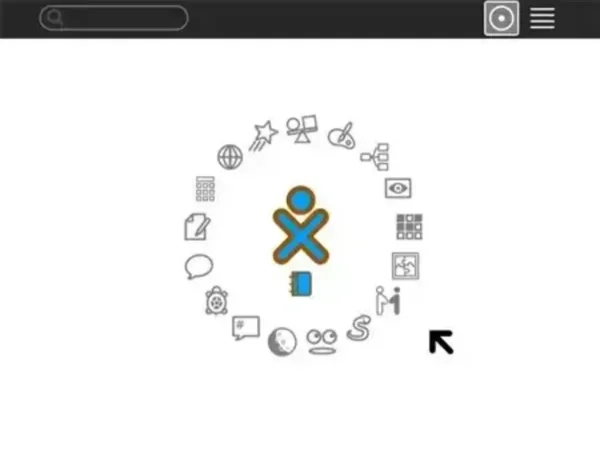
Sugar on a Stick is used daily in educational environments worldwide and is available in multiple languages. It is a Fedora Linux based operating system that incorporates the Sugar Learning Platform, an educational software suite originally developed for the One Laptop per Child (OLPC) project.
Rather than using a traditional desktop with menus and application launchers, Sugar focuses on activities instead of applications. This encourages exploration, collaboration, and experiential learning. Running Sugar on a USB flash drive allows students and educators to carry an entire learning environment with them and use it on almost any computer without installing anything to the internal hard drive.
Key Features
- Portable Learning Environment: Run Sugar directly from a USB flash drive on nearly any compatible computer without installation.
- Child Friendly Interface: A colorful, simple, activity based interface designed specifically for children.
- Educational Activities: Includes interactive learning activities for math, science, language, programming, music, and more.
- Collaboration Focus: Built in collaboration tools allow students to work together and share activities.
- Low System Requirements: Optimized to run on older or low resource hardware.
- Persistence Support: Save user data, activities, and settings between sessions.
- Open Source: Free to use, modify, and distribute with strong community involvement.
Creating a Sugar on a Stick bootable USB is straightforward and can be done on Windows, Linux, or macOS using free tools such as Fedora Media Writer, YUMI, or balenaEtcher.
Specifications
- Distribution Home Page: Sugar Labs
- Download Page: Sugar on a Stick ISO Download
- Base Distribution: Fedora Linux (Official Fedora Spin)
- Initial Release: 2007 alongside the OLPC XO laptop
- Developer: Sugar Labs and the Fedora Project
- Persistence Support: Yes
Essentials to Make a Sugar Bootable USB
- A USB flash drive (8GB or larger recommended)
- Sugar on a Stick ISO file
- A computer capable of booting from USB (UEFI or Legacy BIOS)
How to Create a Sugar on a Stick USB on Windows
Method 1: Using Fedora Media Writer
Since Sugar on a Stick is an official Fedora Spin, the easiest method is naturally going to be by using Fedora Media Writer.
- Download Fedora Media Writer and install it.
- Insert your USB flash drive.
- Open Fedora Media Writer.
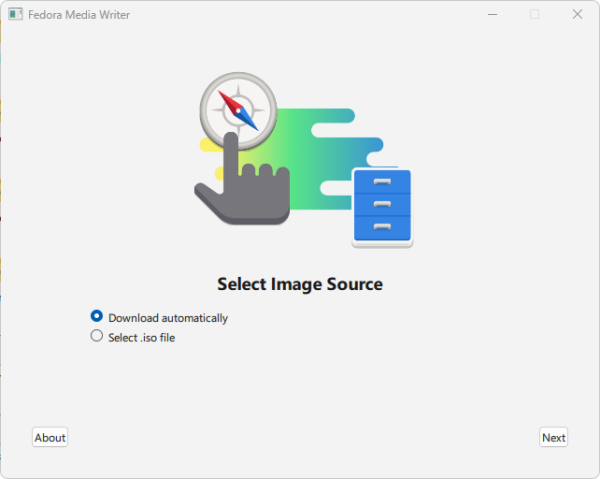
- Under Select Image Source, select Download automatically, then click Next.
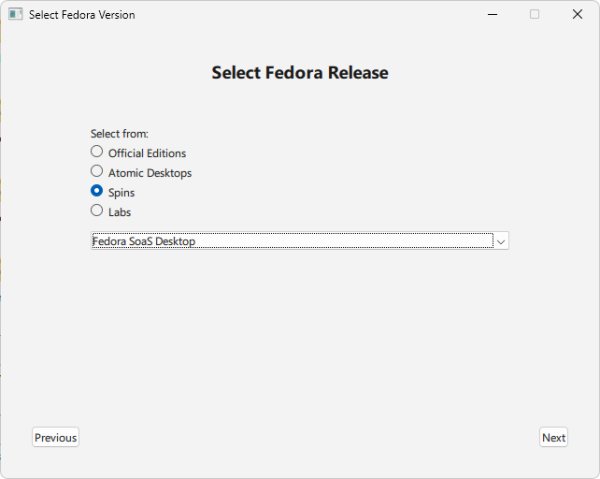
- Under Select Fedora Release, select Spins, choose Fedora SoaS Desktop, then click Next.
- Click Download & Write.
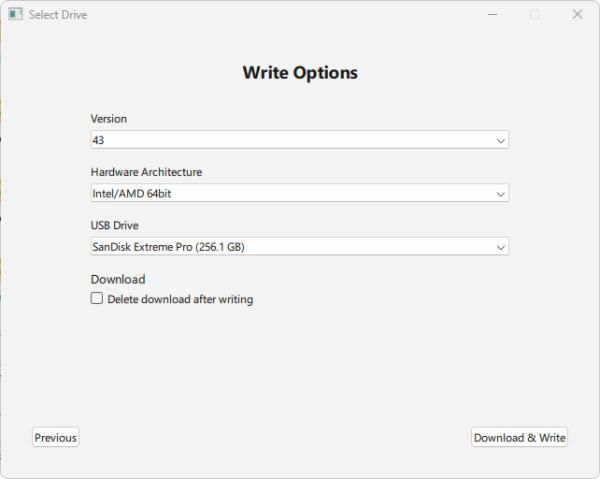
Fedora Media Writer automatically downloads the correct ISO and writes it properly for both UEFI and Legacy BIOS systems.
Method 2: Using YUMI Multiboot USB Creator
For Windows 11, 10, or 8 users who want multiboot capability, download and run the YUMI USB Boot Maker.
- Select your USB drive and check prepare device if needed.
- Choose Sugar on a Stick from the list or use "Try Unlisted ISO".
- Browse to your downloaded ISO file.
- Click Create.
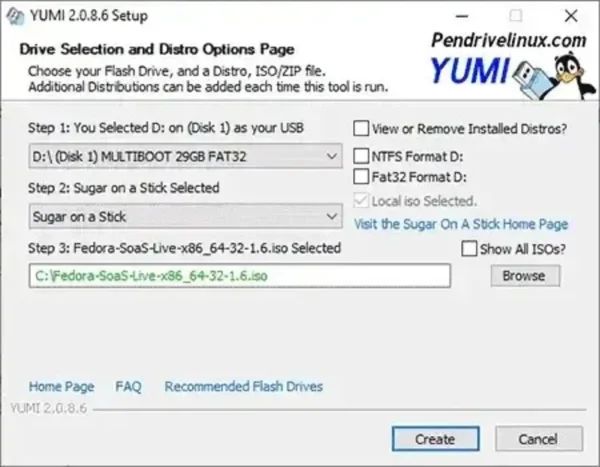
YUMI allows you to keep Sugar alongside other Linux distributions on the same multiboot USB drive.
How to Create a Sugar on a Stick USB on Linux
Method 1: Using Fedora Media Writer
The tool usage steps should be the same as they were for Windows. To get started:
- Install Fedora Media Writer from your distribution repository.
- Insert your USB drive.
- Select Sugar on a Stick under Fedora Spins.
- Click Write.
Method 2: Using the dd Command
- Insert your USB drive and identify it:
lsblk
- Write the ISO to USB:
sudo dd if=soas.iso of=/dev/sdX bs=4M status=progress oflag=sync
- Wait for completion and run:
sync
Replace /dev/sdX with your actual USB device. Be careful, selecting the wrong device can erase your hard drive.
How to Create a Sugar on a Stick USB on macOS
Method 1: Using Fedora Media Writer
For macOS users, the steps are pretty much identical to the Windows Method:
- Download Fedora Media Writer for macOS.
- Insert your USB flash drive.
- Select Sugar on a Stick from the Spins section.
- Click Download & Write.
Method 2: Using balenaEtcher
- Download balenaEtcher.
- Select your ISO file.
- Select the USB drive.
- Click Flash.
How to Boot Sugar on a Stick from USB
- Insert the USB flash drive.
- Power on or restart the computer.
- Open the boot menu using F12, ESC, F10, or DEL.
- Select your USB device.
Booting on a Mac
Restart the Mac while holding the Option key, then select the USB drive when it appears.
If successful, Sugar will load directly from the flash drive and present the Sugar Learning Platform interface.
Frequently Asked Questions
Is Sugar on a Stick an official Fedora Spin?
Yes. Sugar on a Stick is an official Fedora Spin maintained in collaboration with Sugar Labs and the Fedora Project.
Is Sugar on a Stick still maintained?
Yes. It is maintained as part of the Fedora Spins collection and receives updates aligned with Fedora releases.
Is Sugar on a Stick the same as OLPC?
No. Sugar on a Stick includes the Sugar Learning Platform that was originally developed for the One Laptop per Child project, but it runs on standard PCs and laptops using Fedora Linux.
Can Sugar on a Stick run entirely from USB?
Yes. It is designed to boot and operate fully from a USB flash drive without installing to the internal hard drive.
Does Sugar on a Stick support persistence?
Yes. User files, activities, and settings are saved directly to the USB drive so your work remains available after rebooting.
What size USB drive do I need?
An 8GB USB flash drive or larger is recommended for best performance and storage capacity.
How much RAM does Sugar on a Stick require?
Sugar can run on systems with 1GB of RAM or more, making it suitable for older or low resource hardware.
Does Fedora Media Writer erase the entire USB drive?
Yes. Fedora Media Writer reformats and overwrites the selected USB drive during the writing process. Back up any important data before proceeding.
Can I use YUMI to multiboot Sugar with other Linux distributions?
Yes. YUMI allows Sugar on a Stick to coexist with other bootable ISO files on the same multiboot USB drive.
Why will my Sugar USB not boot?
Ensure USB booting is enabled in BIOS or UEFI settings, disable Secure Boot if necessary, verify the ISO checksum, and recreate the USB using a verified image.
Final Thoughts
Sugar on a Stick provides a powerful, portable, and child focused learning platform; an educational Linux USB that can be booted and run on nearly any computer. Using Fedora Media Writer makes creating a Sugar bootable USB simple and reliable, while tools like YUMI allow for advanced multiboot setups.
Whether you are an educator, parent, IT administrator, or student, a SoaS USB drive offers a flexible and reusable educational environment that can be carried anywhere.