
Looking to mount an exFAT USB flash drive from Linux? Most modern USB drives come preformatted with exFAT (Extended File Allocation Table), a filesystem developed by Microsoft that removes the 4GB file size limitation found in FAT32. exFAT has become the preferred format for large-capacity flash drives because it works across Windows, macOS, and Linux while supporting large files and partitions.
In this guide, you'll learn how to mount exFAT USB drives on Linux, install exFAT support if needed, and troubleshoot common exFAT mounting errors.
Why exFAT USB Mounting Matters on Linux
Unlike older FAT32 formatted drives, exFAT supports files larger than 4GB, making it ideal for storing ISO images, virtual machines, backups, videos, and other large files.
Most modern Linux distributions now include built-in exFAT support. However, older systems or minimal Linux installations may still display an error similar to:
Unable to access "volume_name"
Error mounting /dev/sdx at /media/user/volume_name:
unknown filesystem type 'exfat'
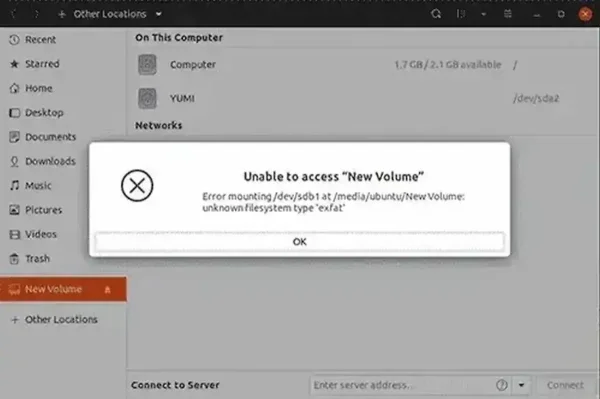
This error typically indicates that exFAT support is missing or the filesystem is damaged.
Check Whether Your Linux System Supports exFAT
Before installing anything, check whether your system already supports exFAT.
Open a terminal and run:
lsblk -fYou should see output similar to:
NAME   FSTYPE LABEL
sdb
└─sdb1 exfat  USB_DRIVE
If the filesystem appears as exfat, your system likely already includes the necessary support.
Install exFAT Support on Ubuntu and Debian
Most Ubuntu, Debian, Linux Mint, and related distributions include exFAT support by default. If your system cannot mount exFAT drives, install the exFAT utilities package:
sudo apt update
sudo apt install exfatprogs
Once installed, unplug and reconnect your USB flash drive.
Install exFAT Support on Fedora
Fedora users can install exFAT utilities with:
sudo dnf install exfatprogsAfter installation, reconnect the drive and verify it mounts correctly.
Install exFAT Support on Arch Linux
Arch Linux users can install exFAT support using:
sudo pacman -S exfatprogsThe drive should then be automatically recognized and mounted.
Manually Mount an exFAT USB Drive
If your desktop environment does not automatically mount the device, you can manually mount it.
First identify the device:
lsblkCreate a mount point:
sudo mkdir -p /mnt/exfatMount the drive:
sudo mount -t exfat /dev/sdb1 /mnt/exfatReplace /dev/sdb1 with the correct device identifier shown by lsblk.
To verify the drive is mounted:
df -hFix Common exFAT Mount Errors
Unknown Filesystem Type 'exfat'
This usually means exFAT support is not installed.
Install the appropriate exFAT utilities package for your Linux distribution and reconnect the drive.
Filesystem Corruption
If the drive was improperly removed from Windows or Linux, the filesystem may require repair.
Run:
sudo fsck.exfat /dev/sdb1Replace /dev/sdb1 with your actual device.
Drive Not Detected
Check whether Linux sees the device:
lsblkYou can also review recent kernel messages:
dmesg | tail -50If the device does not appear, try another USB port or cable.
Permission Issues
If the drive mounts but files cannot be accessed, verify ownership and mount permissions.
Display mounted filesystems:
mount | grep exfatYou may need to remount the drive with different ownership options depending on your Linux distribution.
Frequently Asked Questions
Does Linux support exFAT?
Yes. Modern Linux kernels include native exFAT support, and most popular distributions can read and write exFAT drives without additional drivers.
Can Linux write to exFAT drives?
Yes. Current Linux distributions provide full read and write support for exFAT formatted devices.
Why use exFAT instead of FAT32?
exFAT supports files larger than 4GB, larger partition sizes, and improved performance on modern flash storage devices.
Final Thoughts
Mounting an exFAT USB flash drive from Linux is typically straightforward on modern distributions because exFAT support is now built into the Linux kernel. If your drive fails to mount, installing the latest exFAT utilities, manually mounting the device, or repairing filesystem corruption will usually resolve the issue.
Whether you're working with large ISO images, backups, videos, or multiboot USB drives, exFAT remains one of the most convenient cross-platform filesystems available.