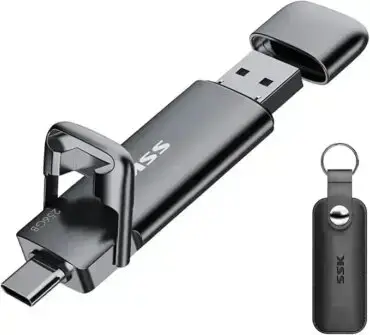
How to Get UUID: Need to quickly find the UUID of a USB flash drive for scripting, mounting, or system administration? This guide shows how to locate a USB drive UUID on Linux and macOS, along with the equivalent Windows volume serial number.
Get UUID of USB Flash Drives

What Is a USB UUID?
A UUID (Universally Unique Identifier) is a unique identifier assigned to a storage volume. Linux and macOS commonly use UUIDs to identify drives consistently, even if the device path changes after rebooting or reconnecting the drive.
Windows uses a similar identifier called a Volume Serial Number.
Why UUIDs Matter
UUIDs are useful because device names and drive letters can change. For example, a Linux USB drive that appears as /dev/sdb1 today could become /dev/sdc1 later.
Using a UUID instead helps ensure scripts, automount rules, and backup jobs always reference the correct drive.
Find the UUID of a USB Drive on Linux
Linux makes it easy to display drive UUIDs from the terminal.
- Insert the USB flash drive.
- Open a terminal window.
- Run:
lsblk -f - Locate your USB device and look under the UUID column.
You can also use:
sudo blkidThis command displays additional details including filesystem type and device path information.
UUIDs are commonly used in Linux /etc/fstab configurations for persistent mounting.
Find the UUID of a USB Drive on macOS
macOS also uses UUIDs to identify storage volumes.
- Connect the USB flash drive to your Mac.
- Open the Terminal application.
- Run:
diskutil list - Identify your USB device, such as
/dev/disk2. - Then run:
diskutil info /dev/disk2 - Look for the line labeled Volume UUID.
This UUID can be useful for scripting, automounting, and advanced disk management tasks.
Find the Volume Serial Number of a USB Drive on Windows
Windows does not typically use UUIDs in the same way Linux and macOS do. Instead, each storage volume receives a unique Volume Serial Number.
Using PowerShell (Recommended)
PowerShell provides a modern way to retrieve volume information on current versions of Windows.
- Insert the USB flash drive.
- Open PowerShell by clicking Start, typing PowerShell, and pressing Enter.
- Run:
Get-CimInstance Win32_Volume | Select-Object DriveLetter, Label, DeviceID, SerialNumber - Locate your USB drive letter and note its corresponding serial number.
Using Command Prompt (Legacy WMIC Method)
Older versions of Windows may still include the WMIC utility.
wmic volume get DriveLetter,Label,DeviceID,SerialNumberIf WMIC is not recognized, use the PowerShell method above instead.
The volume serial number can be used in scripts and automation tasks that require identifying a specific USB device.
Frequently Asked Questions
Is a UUID the same as a device path like /dev/sdb1?
No. Device paths can change depending on boot order or connected hardware. UUIDs remain consistent unless manually modified.
Can I change the UUID of a USB drive?
Yes, though changing a UUID may break scripts or automount rules that depend on the existing identifier.
Does Windows use UUIDs?
Windows typically uses a Volume Serial Number instead of a traditional UUID for removable storage devices.
Why doesn't the WMIC command work on my Windows 11 PC?
Microsoft has deprecated and removed WMIC from many newer Windows installations. Use the PowerShell Get-CimInstance Win32_Volume command instead.
Final Thoughts
Knowing how to retrieve a USB drive UUID or volume serial number can make scripting, mounting, and storage management much more reliable. Linux and macOS both provide direct UUID access through terminal commands, while Windows provides similar functionality through PowerShell and volume serial numbers. You might also be interested in learning how to create a bootable USB from an ISO file using dd.