Install Xubuntu on USB: Create a bootable Xubuntu Live USB drive using Windows or Linux. In this guide, you'll learn how to easily install Xubuntu onto a USB flash drive using YUMI Multiboot software, Etcher, or the dd command. The YUMI USB boot method also supports persistence, allowing you to save changes between sessions by selecting a persistent file size during setup. This makes the tiny Xubuntu operating system an excellent choice for a portable Linux system you can run on almost any computer.
Xubuntu Live Bootable USB
Running Xubuntu from a USB flash drive lets you test the operating system without modifying your internal hard drive. You can also use it as a portable troubleshooting environment, recovery tool, or daily desktop that fits in your pocket.
What Is Xubuntu?
Xubuntu is a lightweight Linux distribution based on Ubuntu and Debian. It uses the Xfce desktop environment, known for its simplicity, speed, and efficient resource usage.

With a clean desktop layout and low system requirements, Xubuntu is ideal for older laptops, netbooks, or systems with limited RAM. It includes essential applications out of the box and provides access to thousands of additional packages through Ubuntu’s software repositories. Regular releases and long-term support (LTS) versions ensure reliability and long-term updates.
- Official Website: Project Home Page
- Minimum USB Drive Size: 2 GB (4 GB or larger recommended)
- Persistence Supported: Yes (via YUMI or advanced Linux setup)
Why Run Xubuntu from a USB Drive?
- Test Xubuntu without installing it to your PC
- Carry a portable Linux desktop anywhere
- Revive or troubleshoot older hardware
- Create a persistent USB that saves files and settings
What You'll Need
- Windows 7, 8, 10, or 11, or Linux or a macOS running system
- Xubuntu ISO file
- Fast USB flash drive (USB 3.0 recommended)
- YUMI, dd for Windows, Win32 Disk Imager, or balenaEtcher
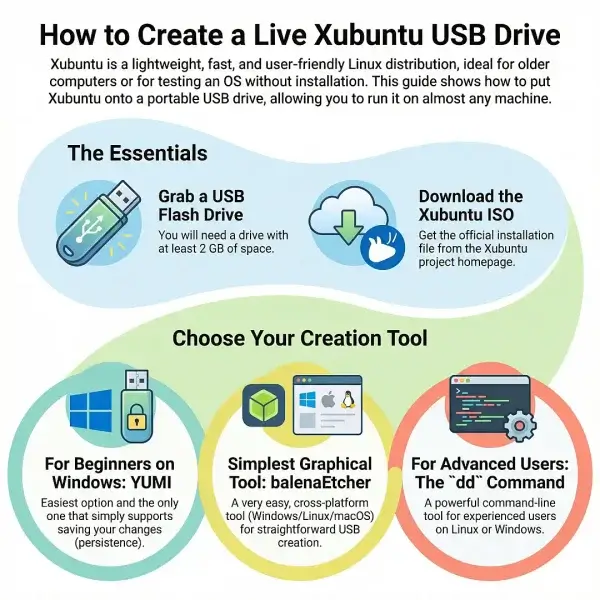
Methods to Put Xubuntu on USB (Windows & Linux)
Below is a comparison of the most common tools used to create a bootable Xubuntu USB drive. Choose the method that best fits your experience level and persistence needs.
| Tool | Platform | Ease of Use | Persistence | Best For |
|---|---|---|---|---|
| YUMI | Windows | Beginner friendly | Yes | Multiboot setups and persistent storage |
| dd (Windows) | Windows | Command line, advanced | No | Experienced users needing raw ISO write |
| Win32 Disk Imager | Windows | Simple GUI | No | Straightforward ISO-to-USB flashing |
| dd (Linux) | Linux | Command line, advanced | No | Linux users comfortable with terminal |
| balenaEtcher | Linux / Windows / macOS | Very easy GUI | No | Cross-platform users seeking simplicity |
Creating a Xubuntu Live USB with YUMI
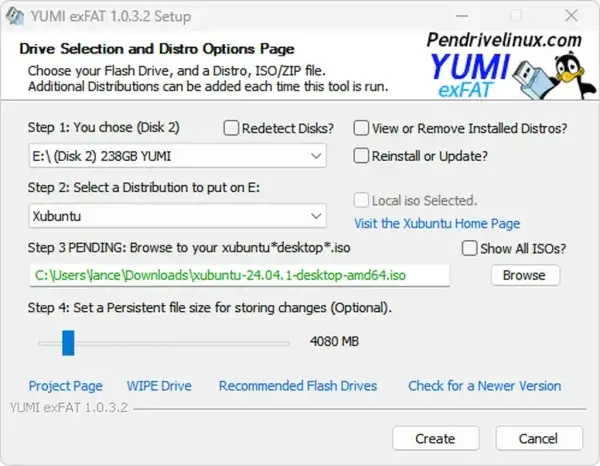
YUMI is the easiest way to create a persistent Xubuntu USB on Windows and also supports multibooting multiple Linux ISOs on one drive.
- Download and open YUMI.
- (1) Select your USB drive.
(2) Choose Xubuntu as the distribution.
(3) Browse to your downloaded ISO file.
(4) Choose a persistent file size if desired, then click Create.
- When finished, reboot and select your USB drive from the BIOS or boot menu.
Using dd for Windows to Make a Bootable Xubuntu USB
This method performs a raw write of the ISO to the USB device and is only recommended for advanced users.
Warning: This process will wipe the entire selected disk including any partitions clean.
- Download dd for Windows.
- Insert the USB flash drive.
- Open Command Prompt with administrator privileges
Press Win + R, typecmd, then press Ctrl + Shift + Enter. - Change to the dd directory
Switch to the folder that containsdd.exe:cd c:\path\dd.exe - Clear the USB drive using diskpart
Launch the disk partitioning utility:diskpartShow all attached disks:
list diskSelect the USB drive (replacing #):
select disk #Erase all partition information on the disk:
cleanExit diskpart:
exit - Write the Xubuntu ISO to the USB
Immediately after cleaning the disk, write the image to the device. Replacepathto-xubuntu.isoandXwith the correct USB disk number.dd if=pathto-xubuntu.iso of=\\.\PhysicalDriveX bs=4M --progress
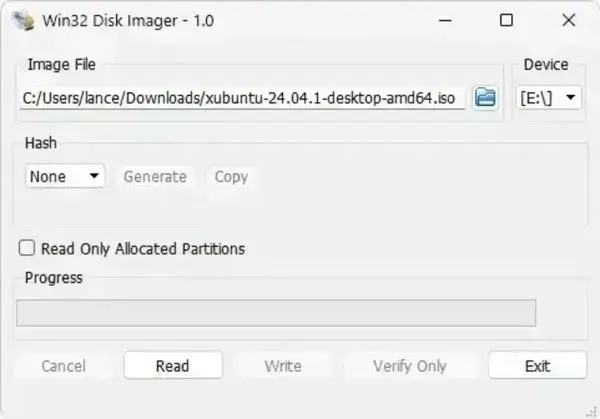
Make an Xubuntu Live USB Using Win32 Disk Imager
- Download Xubuntu.
- Get Win32 Disk Imager.
- Insert the USB drive and launch the program.
- Select the ISO file and your USB device, then click Write.
- Confirm overwrite warnings and wait for completion.
- Safely eject the drive when finished.
Create an Xubuntu bootable USB on Linux
Linux users can create an Xubuntu bootable USB using either terminal based or graphical tools.
Method 1: Using dd from the Linux Terminal
- Download the ISO: Get the latest Xubuntu ISO from the official website.
- Identify the USB device:
lsblkLocate your USB drive (for example,
/dev/sdX). - Write the ISO:
sudo dd if=path/to/xubuntu.iso of=/dev/sdX bs=4M status=progress conv=fsync - When complete, run:
syncThen eject:
sudo eject /dev/sdX
Method 2: Using balenaEtcher (GUI)
- Install balenaEtcher (AppImage or Snap):
sudo snap install balena-etcher-electron - Open Etcher, select the ISO, choose your USB drive, and click Flash!
- Once validated, reboot and boot from the USB drive.
Optional: Making a Persistent Xubuntu USB on Linux
Standard dd and Etcher methods do not enable persistence by default.
- Use YUMI for that. As a bonus, you'll be able to create a Multiboot USB drive.
- Advanced users can manually create a
casper-rwpartition and adjust boot parameters.
Note: For most users, YUMI remains the easiest way to create a persistent Xubuntu USB.
Create an Xubuntu Bootable USB on macOS
macOS users can create a bootable Xubuntu Live USB using either a graphical flashing tool or the Terminal. These methods create a standard live USB without persistence.
Method 1: Create an Xubuntu USB Using balenaEtcher (macOS)
This is the easiest and safest option for most macOS users.
- Download the Xubuntu ISO from the official Xubuntu website.
- Download balenaEtcher for macOS.
- Insert your USB flash drive.
- Launch Etcher, select the Xubuntu ISO, choose your USB drive, and click Flash.
- Wait for the process to complete and validation to finish.
Note: Etcher creates a standard live USB. Persistence is not enabled and must be configured separately using advanced Linux based methods.
Method 2: Create an Xubuntu USB Using dd on macOS
Advanced users can use the macOS Terminal to write the Xubuntu ISO directly to a USB device.
Warning: This method will overwrite the entire USB drive. Be certain the correct disk is selected.
- Open Terminal.
- List all attached disks:
diskutil listIdentify your USB drive, such as
/dev/disk2. - Unmount the USB disk:
diskutil unmountDisk /dev/diskXReplace
Xwith your disk number. - Write the ISO to the USB device:
sudo dd if=/path/to/xubuntu.iso of=/dev/rdiskX bs=4m syncUsing
rdiskimproves write speed. - Eject the USB drive when finished:
diskutil eject /dev/diskX
Once complete, reboot your Mac or PC and select the USB device from the boot menu. On Intel based Macs, hold the Option key during startup to choose the USB device.
Tip: Apple Silicon Macs cannot boot standard Linux live USB drives without virtualization. Use an Intel Mac or PC system for direct USB booting.
Booting and Troubleshooting
USB Not Detected
Ensure USB booting is enabled in BIOS/UEFI. Try another USB port or disable Secure Boot if necessary.
Failed to Boot
Verify the ISO checksum and recreate the USB using a different tool.
Slow Performance
Use a high quality USB 3.0 or SSD based flash drive for faster boot and load times.
Installing Xubuntu from the USB
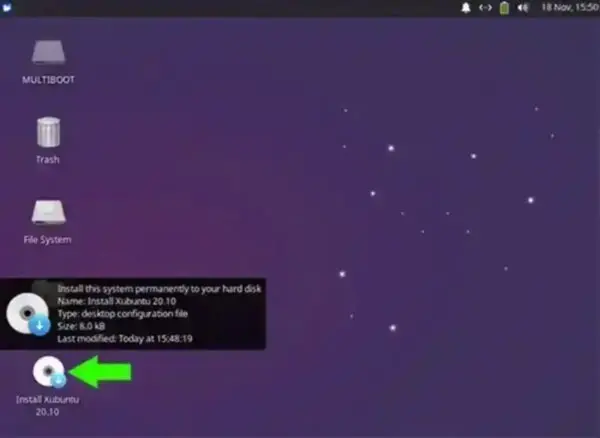
To install Xubuntu to a hard drive, boot from the USB and click Install Xubuntu from the desktop. The guided installer will walk you through disk selection, user setup, and system configuration.
Final Thoughts on USB Xubuntu
Creating a Xubuntu bootable USB is fast and flexible using YUMI, dd, Win32 Disk Imager, or Etcher. With optional persistence, excellent hardware compatibility, and low system requirements, it is the perfect lightweight Linux distribution for portable use, system recovery, or breathing new life into older computers.