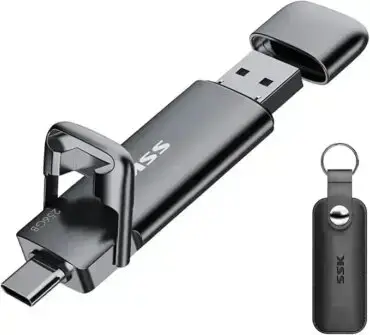
Can You Run VirtualBox from a USB Drive? Yes, you can! This tutorial shows how to use Portable VirtualBox to carry virtual machines on a USB flash drive and launch them on compatible Windows PCs. It's a convenient way to run Linux, Windows, and other operating systems in a virtual machine without creating a bootable USB or rebooting the host computer.
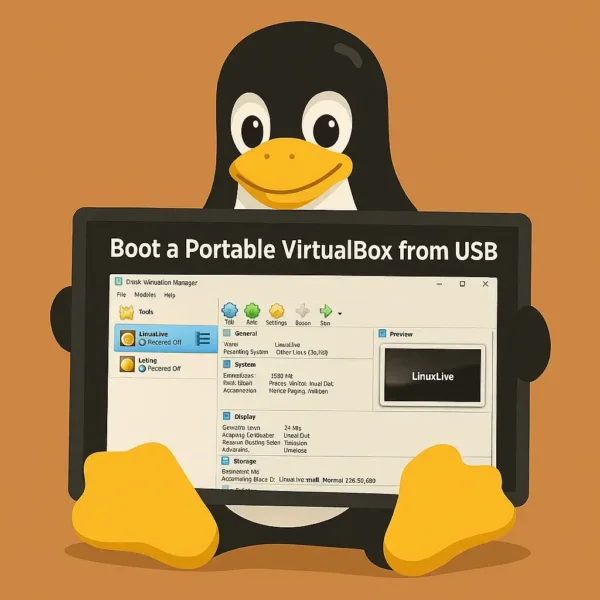
What Is Portable VirtualBox?
Portable VirtualBox is an unofficial launcher that packages Oracle VirtualBox into a portable format. It allows users to store VirtualBox and virtual machine files on a USB flash drive or portable SSD and launch them from compatible Windows computers.
Unlike a traditional installation, Portable VirtualBox attempts to minimize changes to the host system while providing access to VirtualBox functionality directly from removable media.
Can VirtualBox Run from a USB Drive?
Yes. VirtualBox program files and virtual machines can be stored and launched from a USB drive. This makes it possible to carry an entire virtual computing environment with you.
Benefits include:
- Portability: Carry VirtualBox and your virtual machines anywhere.
- No Reboot Required: Run guest operating systems inside Windows without restarting the host PC.
- Testing and Demonstrations: Quickly launch Linux or Windows virtual machines on compatible systems.
- Convenience: Keep your development, recovery, or testing environment in your pocket.
Requirements
- Windows host PC
- Administrative rights (recommended)
- Intel VT-x or AMD-V virtualization support
- USB 3.0 flash drive or portable SSD recommended
- Sufficient RAM for both host and guest operating systems
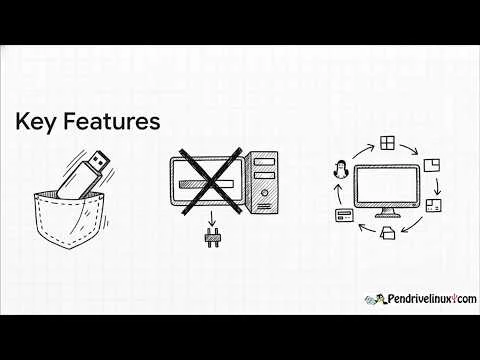
Key Features
- Portable VM Storage: Keep virtual machines on removable media.
- Flexible Deployment: Move between multiple computers.
- Multiple Guest OS Support: Run Linux, Windows, BSD, and other supported operating systems.
- No Dedicated Installation Required: Launch VirtualBox from the USB drive instead of performing a standard installation.
How to Run VirtualBox from a USB Drive
Getting Portable VirtualBox running from a USB drive is straightforward.
Tip: For best performance, use a USB 3.0 flash drive or portable SSD to store your virtual machines.
- Download Portable VirtualBox.
- Extract the ZIP archive directly to your USB flash drive.
- Open the extracted folder and launch
Portable-VirtualBox.exe. - Allow the program to download or configure the required VirtualBox files if prompted.
- Select an existing virtual machine or create a new one.
- Click Start to launch the guest operating system.
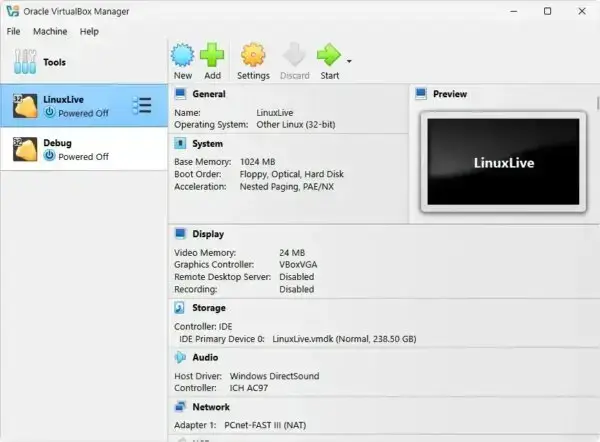
Running Linux on Windows from USB
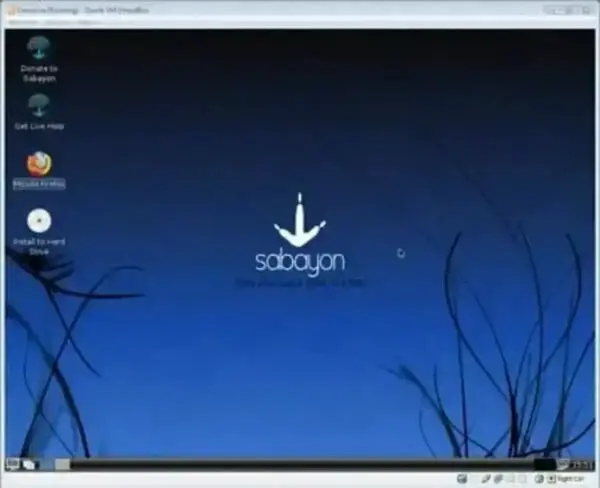
One of the most common uses for Portable VirtualBox is running Linux inside Windows without rebooting. Simply store your Linux virtual machine on the USB drive and launch it whenever needed.
Benefits of Portable VirtualBox
- Portable Workspace: Carry your complete VM environment wherever you go.
- No Need to Reboot: Run another operating system alongside Windows.
- Development and Testing: Test software or operating systems in isolated environments.
- Training and Demonstrations: Easily showcase software on different computers.
Frequently Asked Questions
Can VirtualBox run directly from a USB drive?
Yes. Portable VirtualBox allows VirtualBox program files and virtual machines to be stored and launched from a USB drive. Some Windows systems may still require administrator privileges to load virtualization drivers.
Does Portable VirtualBox work on Windows 11?
It may work on Windows 11, though compatibility depends on the Portable VirtualBox version, VirtualBox version, available drivers, and Windows security settings.
Can I run Linux from a USB drive using VirtualBox?
Yes. You can store a Linux virtual machine on the USB drive and run it inside VirtualBox on compatible Windows systems.
Do I need hardware virtualization support?
For best performance and support for modern 64-bit guest operating systems, Intel VT-x or AMD-V virtualization support should be enabled in BIOS or UEFI settings.
Does Portable VirtualBox support 64-bit guests?
Yes, provided the host system supports hardware virtualization and the feature is enabled.
Is VirtualBox free?
Yes. VirtualBox is free for personal and educational use. The core platform is open source, while some optional features are provided through Oracle's proprietary Extension Pack.
Can I run Portable VirtualBox on Linux or macOS hosts?
Portable VirtualBox was designed primarily for Windows host systems. Linux and macOS users should generally install the standard VirtualBox package for their platform.
How much USB storage space do I need?
The Portable VirtualBox launcher itself requires relatively little space, but virtual machines can consume several gigabytes each. A 32GB or larger USB drive is recommended.
Why is VirtualBox running slowly?
- Enable VT-x or AMD-V virtualization support.
- Allocate additional RAM and CPU cores to the guest.
- Run from a USB 3.0 drive or SSD.
- Close unnecessary background applications.
Why doesn't my virtual machine detect USB devices?
- Install the matching VirtualBox Extension Pack.
- Enable USB support under VM settings.
- Run VirtualBox with administrator privileges.
- Install Guest Additions in the guest operating system.
How do I transfer files between the host and guest?
- Use Shared Folders.
- Enable Drag and Drop support.
- Use Clipboard Sharing.
- Configure a network share.
Final Thoughts
Portable VirtualBox provides a convenient way to carry virtual machines on a USB drive and launch them on compatible Windows computers. Whether you're testing Linux distributions, demonstrating software, maintaining a portable development environment, or carrying recovery tools, it offers flexibility that traditional installations cannot match.
While compatibility varies depending on Windows version, virtualization support, and administrative privileges, Portable VirtualBox remains a useful option for users who need a mobile virtualization environment. Pairing it with a fast USB 3.0 flash drive or portable SSD can significantly improve performance and responsiveness.
For IT professionals, developers, students, and Linux enthusiasts alike, Portable VirtualBox continues to offer a practical way to keep virtual machines available wherever they're needed.