Easily Create an Ubuntu Bootable USB with Persistence: This tutorial guides you through creating an Ubuntu Live CD USB with persistence using the Official Startup Disk Creator. Startup Disk Creator can write a supported Ubuntu ISO to a USB flash drive. Current versions do not always offer a persistence setting, so do not assume files and system changes will be saved between Live sessions. If persistent storage is essential, use a tool and Ubuntu release that explicitly support it.
Ubuntu is a popular open source Linux distribution created by Canonical Ltd., originally based on Debian. It continues to share many of the same upstream roots.
Distribution Home Page: Ubuntu Project Page
Offers a Persistent Feature: Yes
Essentials for Creating a Bootable Ubuntu USB
- Computer with a USB port
- Ubuntu ISO file
- USB flash drive (8GB or larger recommended for current Ubuntu Desktop images)
- Ubuntu Startup Disk Creator (included in the Ubuntu installation)
The following method creates a Live Ubuntu USB that utilizes a compressed Squashfs file system. See how to fully Install Ubuntu on USB, if you would rather run Ubuntu from an external USB drive using a method that works exactly like it would running from an internal drive.
How to Create an Ubuntu Bootable USB from ISO
- Download the Ubuntu ISO:
Obtain the latest Ubuntu ISO from the Ubuntu download page. - Open the Startup Disk Creator:
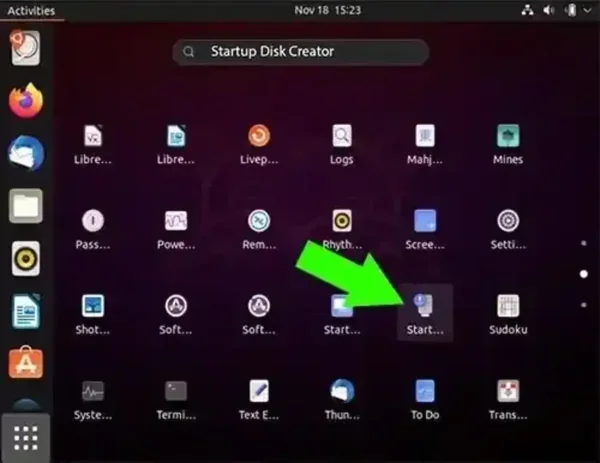
If you're already using an Ubuntu system, you can find the Startup Disk Creator by:- Clicking Show Applications in the bottom left corner of the desktop.
- Searching for Startup Disk Creator.
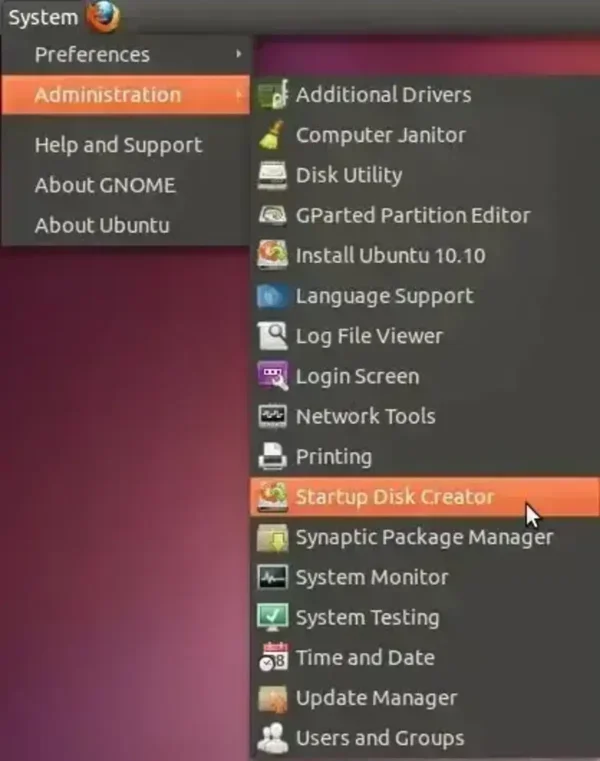
On older Ubuntu releases:- Navigate to System > Administration > Startup Disk Creator.
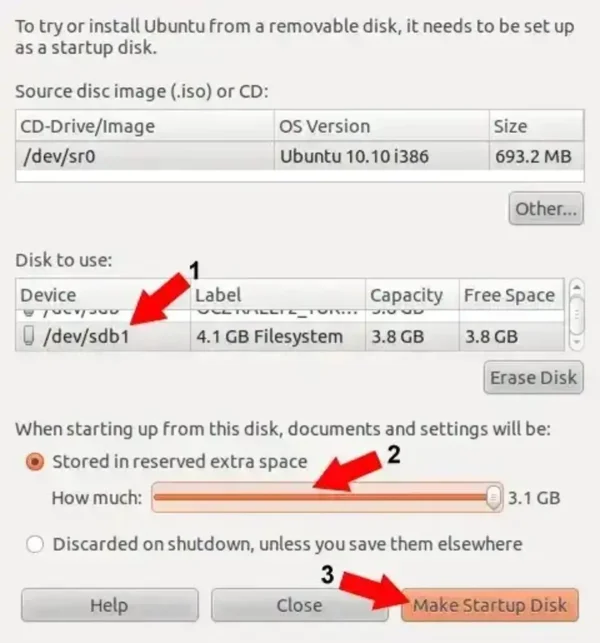
- Select the Source Disk Image:
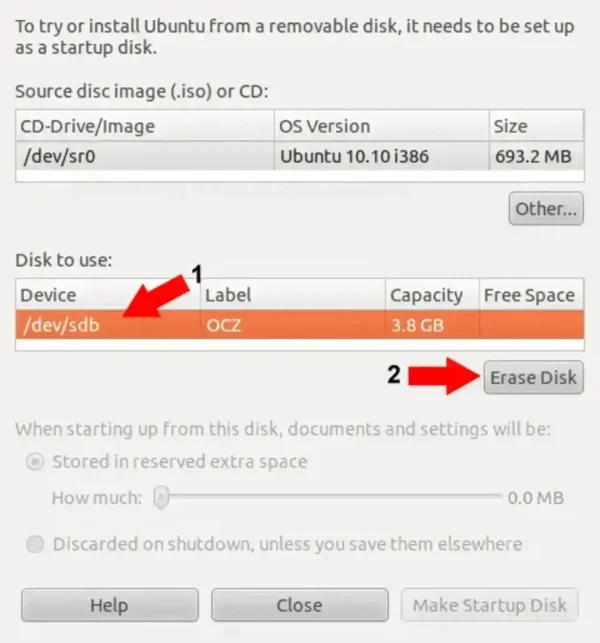
In the Startup Disk Creator, click Other to browse and select the downloaded Ubuntu ISO file. - Select the Target USB Drive:
Ensure you've backed up any important data, as this process will erase the USB drive.
(1.) Insert your USB flash drive and select it under Disk to use.
(2.) Click Erase Disk.
- Create the Bootable USB:
Click Make Startup Disk and confirm the selected USB drive. The application writes the Ubuntu image to the drive. The available options vary by Ubuntu release; current versions may not offer a persistence slider. Back up the USB first because its existing data will be erased.
- Boot from the USB Drive:
Once the process is complete, remove the USB drive and restart your computer.- Enter your system BIOS/UEFI or boot menu during the reboot and set your system to boot from the USB device.
- Save the changes (F10) and proceed to boot from the USB drive.
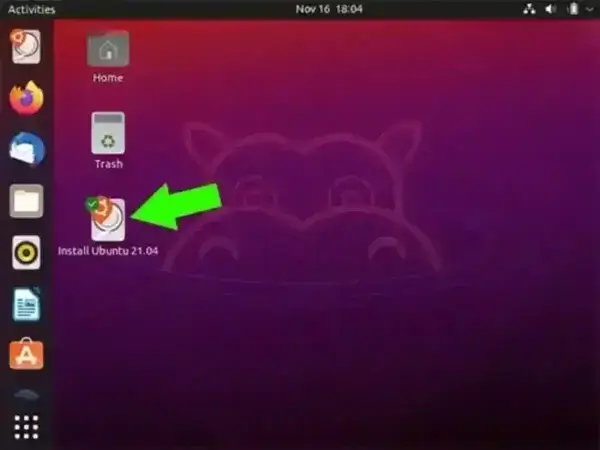
If all went well, you should now be booting directly from your Ubuntu Bootable USB. You can choose to either run Ubuntu in Live mode or Install Ubuntu from USB.
Additional Notes:
- UEFI and Secure Boot: Use your computer's one-time boot menu to select the USB drive. Keep UEFI and Secure Boot settings at their defaults unless you have a specific compatibility issue; changing to Legacy mode is not generally required for a current Ubuntu installer.
- Persistence: A standard Live USB does not necessarily retain files or settings after reboot. Confirm that your chosen Ubuntu release and USB creation tool support persistence before relying on it.
Frequently Asked Questions (FAQ)
- Will creating a bootable Ubuntu USB erase all data on the USB drive?
- Yes, creating a bootable Ubuntu USB will format the drive, erasing all existing data. Ensure you back up any important files before proceeding.
- Can I use a USB drive smaller than 4GB to create a bootable Ubuntu USB?
- It's not recommended. While it's technically possible with smaller drives, a minimum of 4GB is advised to ensure sufficient space for the Ubuntu system and any additional tools you might want to include. For a persistent live system, an 8GB or larger USB drive is recommended.
- How can I create a bootable Ubuntu USB on a Windows system?
- On Windows, you can use tools like the Universal USB Installer or YUMI to create a bootable Ubuntu USB. These tools allow you to select the Ubuntu ISO and the target USB drive to create the Ubuntu bootable USB media.
- My computer doesn't boot from the USB drive. What should I do?
- Ensure that your system's BIOS or UEFI settings are configured to boot from USB. You may need to access the boot menu during startup (often by pressing keys like F12, F2, ESC, or DEL) and select the USB drive as the boot device.
- Can I save files and settings between Ubuntu Live sessions?
- Not every Ubuntu USB creation method supports persistence. Current versions of Startup Disk Creator may not provide a persistence option. Check the documentation for your Ubuntu release and chosen USB creation tool before relying on persistent storage.
- Can I install Ubuntu to my USB drive for full use as a regular operating system?
- Yes, you can fully install Ubuntu on a USB drive, which allows you to use it as a portable OS on different computers. The steps for this are different from creating a live USB. Check out how to fully install Ubuntu on a USB drive.
- What is the difference between a persistent and non-persistent Ubuntu USB?
- A persistent Ubuntu USB allows you to save files and settings across reboots, while a non-persistent USB only allows you to run the system temporarily without saving changes.
- How can I remove Ubuntu from my USB drive?
- You can remove Ubuntu by formatting the USB drive using your system's disk management tools. This will erase all data from the USB drive, including the Ubuntu installation.
- What do I do if I encounter a "Boot Error" when booting from my Ubuntu USB?
- If you receive a boot error, it may be due to incorrect BIOS/UEFI settings or a corrupt USB drive. Check your system's boot order and make sure the USB drive is properly created.
- Does the Ubuntu bootable USB work on all computers?
- Most modern systems should be able to boot from a USB drive. However, some older systems may require BIOS adjustments or may not support booting from USB at all.
- How much space is required for persistence on the Ubuntu USB?
- The amount of space required for persistence depends on how much data you want to store. A minimum of 1GB is recommended for basic use, though you may allocate more space for a fully functional experience. [More about persistence](https://ubuntu.com/tutorials/create-a-usb-stick-on-ubuntu).
- Can I use Ubuntu on a USB drive as my main OS?
- Yes, you could use Ubuntu installed on a USB as your main OS. However, a running an Ubuntu Live CD USB will not allow you to do some system updates. Though as mentioned before, you can perform a full Ubuntu installation to USB.
Final Thoughts on creating an Ubuntu Live CD USB
Creating an Ubuntu Live USB lets you try Ubuntu, troubleshoot a computer, or launch the installer without first installing Ubuntu to the internal drive. A standard Live session does not necessarily preserve files and settings after reboot; persistence depends on the USB creation method and Ubuntu release.
Key takeaways:
- Ubuntu's Startup Disk Creator is a straightforward way to write a supported Ubuntu ISO to a USB drive.
- Make sure your USB drive has enough space for both the Live operating system and persistent storage.
- Remember to disable Secure Boot or enable legacy boot if you're having trouble booting from your USB on a UEFI system.
A standard Ubuntu Live USB is useful for testing and troubleshooting, but changes may not survive a reboot unless the selected tool and release support persistence. If you need a full portable Ubuntu installation that behaves more like a regular installed system, see our guide to installing Ubuntu on a USB drive.