Add User to Sudoers File in Linux: Giving a user admin rights on Linux starts with adding them to the sudoers file or the right group-like "wheel" or "sudo." That's how you let someone run commands as root without ever needing the root password directly. The safest method is the visudo command, which checks your syntax before saving so a typo can't lock you out of admin access.
This guide covers three ways to grant sudo access-group membership, direct sudoers file edits, and the modern /etc/sudoers.d/ drop-in method-across Ubuntu, Debian, Fedora, Arch, CentOS, openSUSE, and Gentoo. It also covers the "user is not in the sudoers file" error, which is one of the most common reasons people land on this page in the first place.
Add User to Sudoers: Grant Administrative (Root) Access
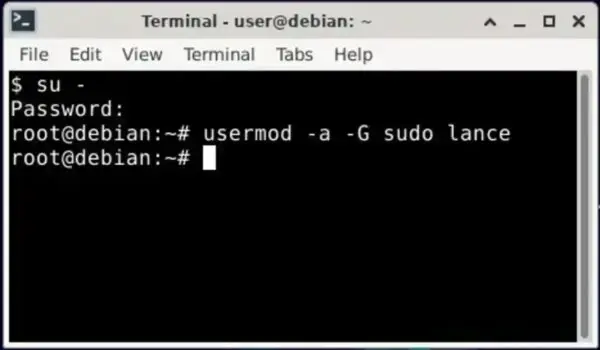
Using the terminal to add a user to the sudoers file on Debian based systems like Ubuntu.
- Ubuntu and Debian:
usermod -aG sudo username - Fedora, CentOS, Arch, openSUSE, Gentoo:
usermod -aG wheel username - Edit sudoers safely using
sudo visudo - Manual entry:
username ALL=(ALL) ALL - Preferred modern method: a drop-in file in
/etc/sudoers.d/ - Verify access with
sudo -lorsudo whoami - Log out and back in-or run
newgrp sudo-for group changes to take effect
On Debian and Ubuntu based systems, users in the sudo group are allowed to execute commands as root. Most other Linux distributions-Fedora, CentOS, Arch, openSUSE, Gentoo-use the wheel group for the same purpose instead. Both work the same way under the hood: sudo checks /etc/sudoers (and anything included from /etc/sudoers.d/) to see whether the group, or the user directly, has permission.
Important:
Some Live Linux environments do not have a root password set by default. If you are using a Live system, you may need to set a root password before continuing. See how to set the default root password for Debian or Ubuntu.
Set a Root Password (If Required)
If the root account is disabled, set a password first.
- Open a terminal with Ctrl + Alt + T
- Run the following command:
sudo passwd rootOnce completed, continue with the instructions below.
Add a User to Sudoers on Ubuntu and Debian
- Open a terminal: Ctrl + Alt + T
- Switch to the root account:
sudo su- Add the user to the sudo group (replace
username):
usermod -aG sudo usernameNote: The user must log out and log back in before group changes take effect. To apply the change immediately in the same terminal session without logging out, run newgrp sudo.
Note on Debian specifically: a minimal Debian install may not add the first user to the sudo group automatically, and sudo itself may not even be installed. If usermod -aG sudo username fails or sudo isn't recognized, install it first with apt -y install sudo.
Fix "bash: sudo: command not found"
If you encounter the error bash: sudo: command not found, install sudo as root.
apt -y install sudoThen test sudo access.
su - username
sudo whoami
Fix "username is not in the sudoers file. This incident will be reported."
This is the error sudo shows when the account exists but has no sudo privileges at all-no group membership and no entry in /etc/sudoers. To fix it:
- Log in as (or switch to) an account that already has root or sudo access.
- Add the affected user to the correct group for your distro:
usermod -aG sudo usernameon Ubuntu/Debian, orusermod -aG wheel usernameelsewhere. - Log the user out and back in, or run
newgrp sudo(ornewgrp wheel) in their current session.
If you don't have access to any privileged account at all, you'll need to boot into single-user/recovery mode or a live USB to reset access from outside the normal login.
Editing the Sudoers File with visudo
Direct edits to /etc/sudoers are risky. Always use visudo to prevent syntax errors.
- Open a terminal
- Run:
sudo visudo- Scroll to the bottom of the file
- Add the following line:
username ALL=(ALL) ALL- Save and exit: Ctrl + X, Y, Enter
Tip: To make editing easier:
export EDITOR=nanoThe Better Way: Using /etc/sudoers.d/
Rather than editing the main /etc/sudoers file directly, most modern distros support dropping a separate file into /etc/sudoers.d/. Anything in that directory is automatically included, and it won't get overwritten by package updates or accidentally conflict with other admin edits.
- Create a new file named after the user (no dots, no trailing tilde):
sudo visudo -f /etc/sudoers.d/username- Add the same permission line:
username ALL=(ALL) ALL- Save and exit.
visudovalidates this file's syntax the same way it does the main sudoers file.
This is the approach most sysadmins prefer today for anything beyond a quick one-off change, since each user's permissions live in their own file.
Granting Sudo Access on Other Linux Distributions
The following instructions show how to add a user to the sudoers file on other popular Linux distributions.
CentOS: Add User to Sudoers (wheel group)
- Switch to root:
su -- Add the user to the wheel group:
usermod -aG wheel username- Verify sudo access:
su - username
sudo whoami
Arch Linux: Add User to Sudoers
- Install sudo:
pacman -S sudo- Edit the sudoers file:
EDITOR=nano visudo- Uncomment the following line:
%wheel ALL=(ALL) ALL- Add the user to the wheel group:
usermod -aG wheel usernameFedora: Add User to Sudoers
Fedora includes sudo by default, and the wheel group is already uncommented in /etc/sudoers. You only need to add the user to the group.
usermod -aG wheel usernameIf you want to double-check the group is active, run sudo visudo and confirm this line is uncommented:
%wheel ALL=(ALL) ALLopenSUSE: Add User to Sudoers
zypper install sudo
usermod -aG wheel username
Gentoo: Add User to Sudoers
emerge --ask app-admin/sudo
usermod -aG wheel username
Verifying and Managing Sudo Access
Once a user has been added, confirm it worked and understand what they can actually do.
- Check current permissions:
sudo -llists every command (or ALL) the logged-in user is allowed to run. - Quick root check:
sudo whoamishould printrootif access is working. - Remove access later: remove the user from the sudo/wheel group with
deluser username sudo(Debian/Ubuntu) orgpasswd -d username wheel(wheel-based distros), or delete their line fromvisudoif they were added individually.
Frequently Asked Questions
What is the sudoers file?
The sudoers file (/etc/sudoers) defines which users or groups can run commands with elevated privileges using sudo, and under what conditions.
What's the difference between the sudo group and the wheel group?
They serve the same purpose-granting sudo access to their members-just under different names by convention. Debian and Ubuntu use sudo; Fedora, CentOS, Arch, openSUSE, and Gentoo use wheel.
Is using sudo the same as being logged in as root?
No. A sudo user still runs as their own account by default and only gains root privileges for the specific command they prefix with sudo, after authenticating with their own password. Being logged in as root grants full privileges to every command run in that session, which is riskier.
Why should I use visudo instead of editing the file directly?
visudo locks the file against simultaneous edits and validates syntax before saving, preventing errors that could break sudo entirely or lock you out of admin access.
Why am I seeing "username is not in the sudoers file"?
The account has no sudo privileges yet-it isn't in the sudo/wheel group and has no individual entry in /etc/sudoers. Add it to the correct group (see above) using an account that already has root or sudo access.
How do I verify sudo access is working?
Run sudo whoami or sudo -l. If you see root privileges listed, sudo is working correctly.
Is it safe to use NOPASSWD in the sudoers file?
Generally no, outside of specific automation or scripting needs. NOPASSWD lets a user run sudo commands without entering a password, which removes an important security check-anyone with access to that user's session gets root-level access instantly.
Can I remove sudo access later?
Yes. Remove the user from the sudo or wheel group, or delete their entry using visudo (including any file you created in /etc/sudoers.d/).
Best Practices When Managing Sudo Access
- Always edit sudoers using
visudo, whether editing the main file or a file in/etc/sudoers.d/ - Prefer group based access over individual user entries for most users
- Use
/etc/sudoers.d/drop-in files instead of the main sudoers file when managing several users individually - Grant sudo access only to trusted users
- Avoid using
NOPASSWDunless absolutely necessary for automation
Final Thoughts
Granting sudo access gives users full administrative control over a Linux system. When done correctly-using groups, visudo, and /etc/sudoers.d/ where it makes sense-it provides both flexibility and security. Follow these steps carefully and you can safely manage user privileges across nearly any Linux distribution.