
How to easily enable Linux on Chromebooks: Most modern Chromebooks include a built-in Linux feature called Crostini, also known as Linux on ChromeOS. This allows you to run Linux applications securely alongside your native ChromeOS without wiping your device, enabling Developer Mode, or creating and booting from a USB flash drive.
In this article, you will learn how to run Linux on your Chromebook, install Linux applications, and understand how Crostini compares to other Linux options like GalliumOS and Crouton.
What Is Crostini (Linux on ChromeOS)?
Crostini is Google's official Linux solution for ChromeOS. It runs a Debian based Linux environment inside a secure virtual machine and container, allowing Linux apps to integrate seamlessly with ChromeOS.
- No Developer Mode required
- No data wipe
- Officially supported by Google
- Linux apps run like native ChromeOS apps
How to Enable Linux on Chromebook
Here are the step to get started and enable Linux on a Chromebook:
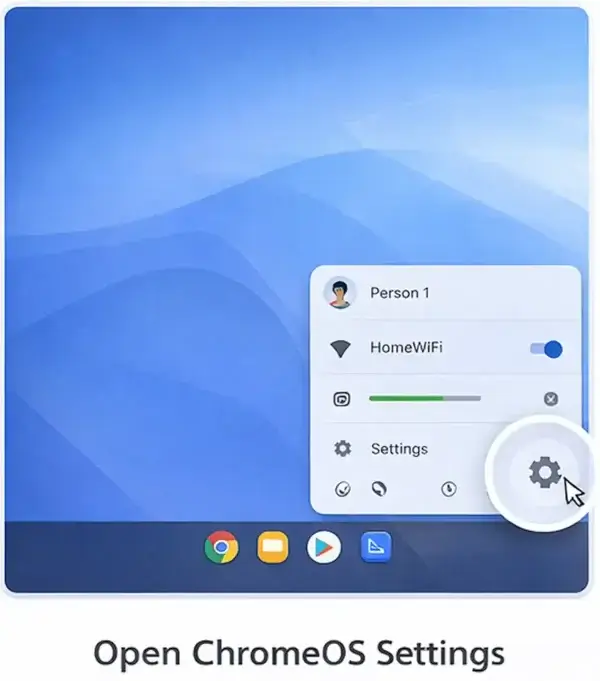
Open ChromeOS Settings
- Click the system tray (bottom-right corner).
- Select the Settings gear icon.
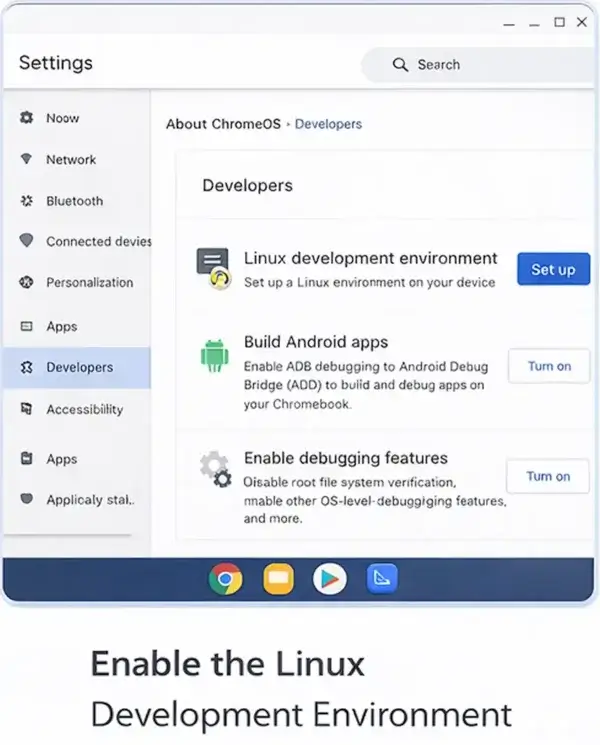
Enable the Linux Development Environment
- Go to About ChromeOS.
- Click Developers.
- Next to Linux development environment, click Set up.
Configure Linux
- Choose a username.
- Allocate disk space (this can be increased later).
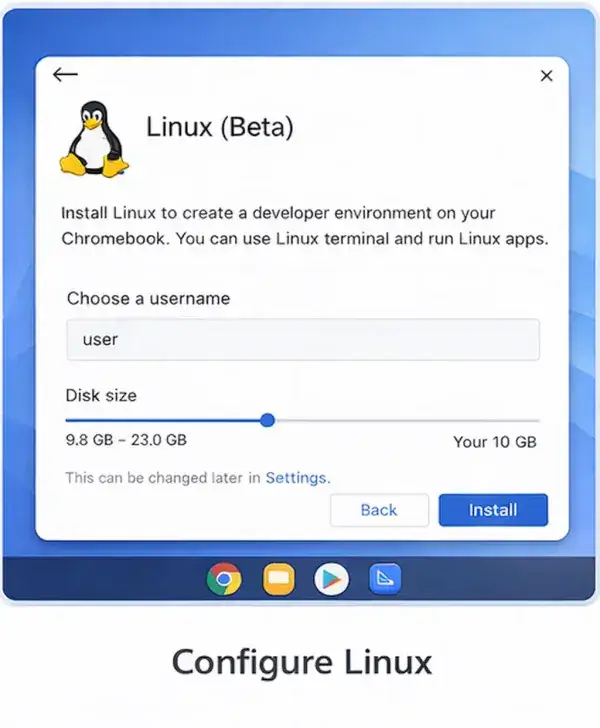
Install Linux
Click Install and wait for the setup to complete. This can take 5-15 minutes depending on your Chromebook.
Using Linux on Chromebook
Once installation completes, a Linux terminal opens automatically. This is your command line. Here you can install applications and start making use of Linux on your Chromebook.
Linux Terminal
You can ensure everything is up to date by copy/pasting the following command and pressing enter.
sudo apt update && sudo apt upgrade -yInstalling Linux Applications
You can install Linux software using the following command:
sudo apt install <package_name>Or alternately, you could simply use the graphical .deb installers.
Some popular Linux apps you might want to run on a Chromebook include:
- VS Code
- GIMP
- LibreOffice
- VLC
- Firefox
File Sharing with ChromeOS
The ChromeOS Files app allows shared folders, making it easy to move files between ChromeOS and Linux.
Best Linux Options for Modern Chromebooks
Not all Linux solutions for Chromebooks are the same. Here's how Crostini compares to other popular methods. If you're wondering which Linux option is best for your Chromebook, the table below breaks down the key differences.
| Linux Option | Best For | Requires Developer Mode | USB Boot | Risk Level |
|---|---|---|---|---|
| Crostini (Linux on ChromeOS) | Modern Chromebooks | No | No | Low |
| GalliumOS | Older Chromebooks | Yes | Yes | Medium |
| Crouton | Power users | Yes | No | Medium |
| Chrultrabook | Advanced users | N/A | No | High |
Tip: If you want to install a full Linux OS from USB, see our guide on running GalliumOS on Chromebooks.
Key Benefits of Crostini
- Security: Runs in an isolated container
- Stability: No firmware modifications
- Ease of use: Enabled in minutes
- Performance: Excellent on modern hardware
Frequently Asked Questions
Can I install Linux on a Chromebook without Developer Mode?
Yes. Crostini allows Linux installation without enabling Developer Mode or wiping your device.
Is Linux Beta the same as Crostini?
Yes. Linux (Beta) is the user facing name for it, which found in ChromeOS settings.
Does enabling Linux erase my Chromebook?
No, it installs without deleting your data.
Can I run GUI Linux apps on Chromebook?
Yes. Linux apps launch from the ChromeOS app launcher like native apps.
Can I boot Linux from USB on a Chromebook?
Only on older models that support legacy boot. Modern Chromebooks typically block USB booting.
Is Crostini suitable for development?
Absolutely. It supports compilers, interpreters, Docker, Git, and popular IDEs.
Final Thoughts
Nowadays, Crostini is probably the safest way to run Linux on a Chromebook. It requires no risky modifications and provides excellent performance for development, productivity, and learning. For older devices or users wanting full system control, solutions like GalliumOS still have their place; but for most users today, Linux (Beta) is in our opinion the clear winner.