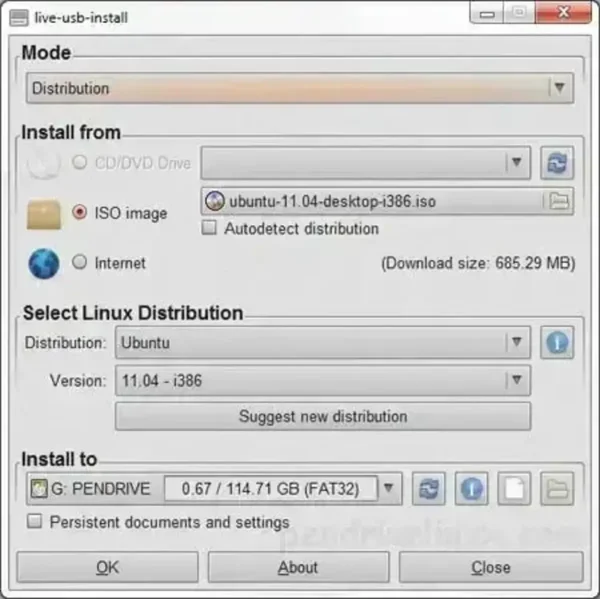
LiveUSB Install is a third party tool used to create Live Linux bootable USB drives. It enables you to transfer a Live Linux distribution of your choice onto a USB flash drive for testing, troubleshooting, or installing Linux systems without modifying your hard drive. You can write an existing ISO, use a CD/DVD as the source, or download a Linux ISO file directly from the internet.
LiveUSB Install - Linux Bootable USB Creator
Note: LiveUSB Install appears to no longer be actively maintained. While it may still work for some Linux distributions, modern alternatives such as YUMI, Universal USB Installer, Rufus, or Etcher are generally recommended.
One of the standout features of LiveUSB Install is its flexibility. It allows customization of the syslinux.cfg boot configuration file, supports WinGrub mode, and can directly write ISO or IMG files using the powerful Linux dd method.
For those unfamiliar, dd is a low level disk copying utility commonly used to create bootable USB drives and clone storage devices. It is sometimes nicknamed the "disk destroyer" because selecting the wrong destination drive can overwrite important data.
Written in Python, the software was designed to run on both Windows and Linux operating systems, making it a flexible choice for users who wanted cross-platform support. Whether you're preparing a Live USB for recovery, testing distributions, or installing Linux on multiple machines, LiveUSB Install offered several methods to get the job done.
What is LiveUSB Install?
LiveUSB Install is a free and open source utility designed to help users create bootable USB drives containing Live Linux distributions. Similar to our own Universal USB Installer, it supports multiple source types and offers both simple and advanced options depending on user needs.
Whether you want to boot into a portable Linux environment or install Linux on a new machine, it provides several ways to create a bootable USB drive.
How to Use LiveUSB Install
- Download LiveUSB Install: Visit the official SourceForge page and download the latest available version.
- Launch the Application: Run the software. No installation is required if you're using the portable version.
- Select the Source: Choose your Linux source:
- Browse to an existing ISO file
- Use a Linux CD/DVD
- Download a Linux ISO directly from the internet
- Choose the Target USB Drive: Select the USB flash drive you want to use.
Be sure to back up any important data first. - Customize Boot Options (Optional): Edit the
syslinux.cfgfile or enable WinGrub mode for additional compatibility. - Select the Writing Method: Choose either the standard installation method or direct
ddwriting mode. - Create the Bootable USB: Click the appropriate button to begin writing the Linux distribution to the USB drive.
Once the process completes, reboot your computer and select the USB device from your BIOS or boot menu to launch the Live Linux environment.
Key Features
- Live Linux USB Creation: Create bootable USB drives from Linux ISO images.
- Multiple Source Options: Use ISO files, CD/DVD media, or direct internet downloads.
- Custom Boot Configuration: Edit the
syslinux.cfgfile to customize boot parameters. - WinGrub Mode: Provides additional boot compatibility options.
- DD Writing Method: Supports direct ISO and IMG writing using the Linux
ddmethod. - Cross-Platform Compatibility: Designed to run on both Windows and Linux systems.
- Simple Interface: Easy enough for beginners while still providing advanced options.
Additional Benefits
- Support for Many Distributions: Many Linux distributions were supported, including Ubuntu, Debian, Fedora, Arch Linux, and their derivatives.
- Portable Application: No installation required.
- Open Source: Developed in Python and distributed under an open source license.
Specifications & Download
- Project Page: SourceForge Project Page
- Developer: Krasimir S. Stefanov
- Operating Systems: Windows and Linux
- License: Open Source
- Status: Appears inactive and no longer under active development.
Frequently Asked Questions
Can LiveUSB Install create a persistent Linux USB?
No. LiveUSB Install does not provide built-in persistence support. For persistence, consider alternatives such as Universal USB Installer or YUMI.
Is LiveUSB Install still being developed?
No. The project appears to be inactive. While downloads remain available through SourceForge, users looking for actively maintained software may prefer alternatives such as YUMI, Universal USB Installer, Rufus, or Etcher.
Is LiveUSB Install safe to use?
Yes. The software itself is generally safe to use. However, care should be taken when using the DD writing mode because selecting the wrong drive can result in data loss.
Which Linux distributions are supported?
Many Linux distributions were supported, including Ubuntu, Debian, Fedora, Arch Linux, and numerous derivatives. Compatibility with newer releases may vary.
Can LiveUSB Install write IMG files?
Yes. The software supports both ISO and IMG image files through its DD writing mode.
Alternatives to LiveUSB Install
If you're looking for actively maintained USB creation tools, consider these alternatives:
- Universal USB Installer (UUI) - Easy to use and supports a wide variety of Linux distributions.
- YUMI Multiboot USB Creator - Supports multiple operating systems, utilities, antivirus tools, and Windows installers on a single USB drive.
- Rufus - Fast, lightweight, and widely used for creating bootable USB drives.
- Balena Etcher - Cross-platform image writing utility with a simple interface.
Final Thoughts
Although LiveUSB Install appears to be an abandoned project, it remains an interesting part of bootable USB creation history. Its support for multiple source types, customizable boot options, WinGrub mode, and direct DD image writing made it a capable tool during its time.
For users seeking modern compatibility and ongoing support, actively maintained alternatives such as YUMI, Universal USB Installer, Rufus, or Etcher are likely better choices today. However, for those exploring older Linux USB creation utilities, this tool remains a noteworthy example of an early cross platform bootable USB creation tool.