How to easily enable Linux on Chromebooks: Most modern Chromebooks include a built-in Linux feature called Crostini, also known as Linux on ChromeOS. This allows you to run Linux applications securely alongside your native ChromeOS without wiping your device, enabling Developer Mode, or creating and booting from a USB flash drive.
In this article, you will learn how to check if your Chromebook supports Linux, enable it, install Linux applications, troubleshoot common setup issues, and understand how Crostini compares to other Linux options like GalliumOS and Crouton.
As technology continues to evolve, many users are seeking ways to expand the capabilities of their devices. For Chromebook users, enabling Linux on Chromebook through the Crostini project presents an opportunity to access a wider range of applications and development tools typically associated with traditional Linux environments. This integration not only enhances the functionality of Chromebooks but also caters to the needs of developers and power users looking for a more versatile computing experience. In this blog post, we will guide you through the steps required to enable Linux on your Chromebook, allowing you to unlock the full potential of your device and explore the diverse world of Linux applications.
What Is Crostini (Linux on ChromeOS)?
Crostini is Google's official Linux solution for ChromeOS. It runs a Debian based Linux environment inside a secure virtual machine and container, allowing Linux apps to integrate seamlessly with ChromeOS.
- No Developer Mode required
- No data wipe
- Officially supported by Google
- Linux apps run like native ChromeOS apps
Does Your Chromebook Support Linux?
Before you start, confirm your device is eligible:
- Most Chromebooks, Chromeboxes, and Chromebases released in 2019 or later support Linux out of the box.
- Some devices released before 2019 support it too, but not all-check Google's official supported device list if yours is older.
- Your device needs to be on a reasonably current version of ChromeOS. If the option isn't available yet, check for ChromeOS updates first.
- School or work managed Chromebooks may have Linux disabled entirely by an administrator policy, regardless of hardware support. If you don't see the option and you're on a managed device, that's usually why-contact your IT admin.
How to Enable Linux on Chromebook
Here are the steps to get started and enable Linux on a Chromebook:
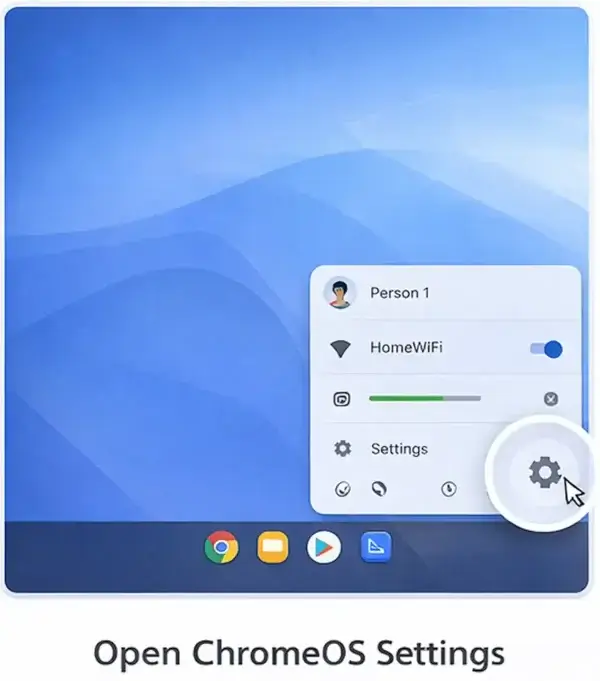
Open ChromeOS Settings
- Click the system tray (bottom-right corner).
- Select the Settings gear icon.
Enable the Linux Development Environment
- Go to About ChromeOS.
- Click Developers.
- Next to Linux development environment, click Set up.
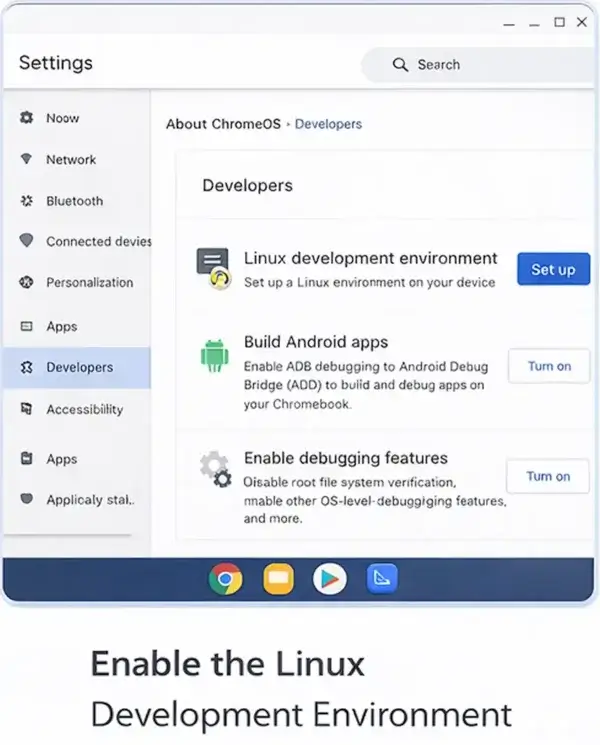
Don't see this option? Make sure ChromeOS is fully updated, restart your Chromebook, and confirm you're not on a school or work managed device with Linux disabled by policy.
Configure Linux
- Choose a username.
- Allocate disk space (you can use the default or customize it-this can be increased later from the same Developers settings page).
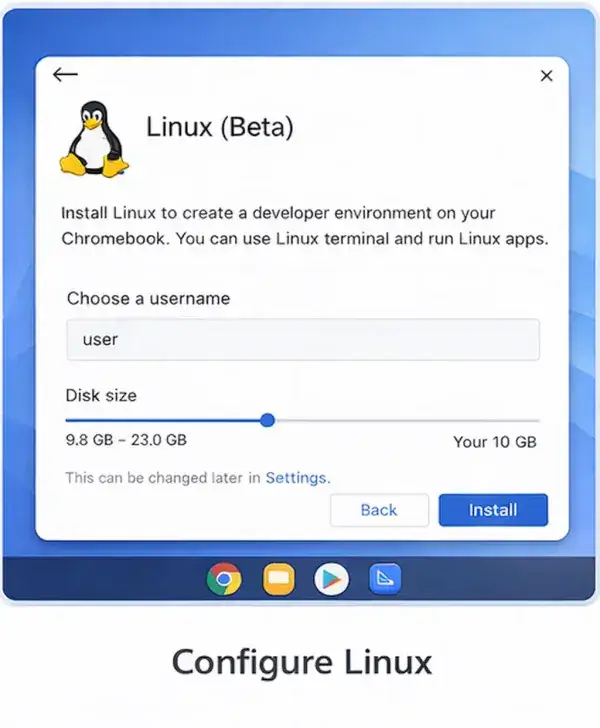
Install Linux
Click Install and wait for the setup to complete. This can take 5-15 minutes depending on your Chromebook.
Using Linux on Chromebook
Once installation completes, a Linux terminal opens automatically. This is your command line. Here you can install applications and start making use of Linux on your Chromebook.
Tip: Right-click the Terminal app icon and choose Pin to keep quick access to it on your shelf.
Linux Terminal
You can ensure everything is up to date by copy/pasting the following command and pressing enter.
sudo apt update && sudo apt upgrade -yInstalling Linux Applications
You can install Linux software using the following command:
sudo apt install <package_name>Or alternately, you could simply use the graphical .deb installers.
Some popular Linux apps you might want to run on a Chromebook include:
- VS Code
- GIMP
- LibreOffice
- VLC
- Firefox
File Sharing with ChromeOS
The ChromeOS Files app allows shared folders, making it easy to move files between ChromeOS and Linux.
Known Limitations
Crostini is sandboxed for security, which means a few things don't work the same as on a full Linux install:
- Camera access is limited or unavailable to Linux apps on many devices
- GPU/hardware acceleration support varies by device and isn't guaranteed for every app
- Some USB peripherals may not pass through to the Linux container
Check Google's current supported/unsupported features list if a specific piece of hardware is a dealbreaker for you.
Managing Storage and Resetting Linux
- Running low on space: go to Settings > Developers > Linux development environment > Manage storage to increase the disk space allocated to the Linux container.
- Something broke and you want a clean slate: from the same Developers settings page, you can turn Linux off, which deletes the container and all its files, then set it up again from scratch.
Best Linux Options for Modern Chromebooks
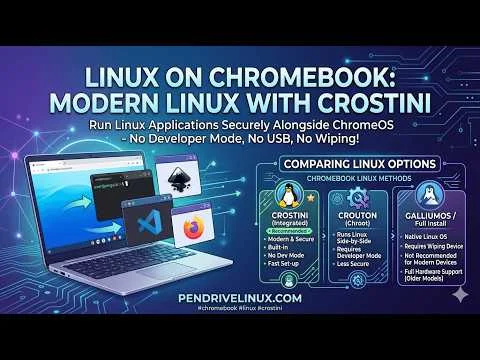
Not all Linux solutions for Chromebooks are the same. Here's how Crostini compares to other popular methods. If you're wondering which Linux option is best for your Chromebook, the table below breaks down the key differences.
| Linux Option | Best For | Requires Developer Mode | USB Boot | Risk Level |
|---|---|---|---|---|
| Crostini (Linux on ChromeOS) | Modern Chromebooks | No | No | Low |
| GalliumOS | Older Chromebooks | Yes | Yes | Medium |
| Crouton | Power users | Yes | No | Medium |
| Chrultrabook | Advanced users replacing ChromeOS entirely | Firmware replacement, not standard Developer Mode | No | High |
Tip: If you want to install a full Linux OS from USB, see our guide on running GalliumOS on Chromebooks.
Key Benefits of Crostini
- Security: Runs in an isolated container
- Stability: No firmware modifications
- Ease of use: Enabled in minutes
- Performance: Excellent on modern hardware
Frequently Asked Questions
Can I install Linux on a Chromebook without Developer Mode?
Yes. Crostini allows Linux installation without enabling Developer Mode or wiping your device.
How do I know if my Chromebook supports Linux?
Most Chromebooks released in 2019 or later support it. Check Settings > About ChromeOS > Developers for a "Linux development environment" option, or check Google's official supported device list for older models.
Why don't I see the Linux option in my Settings?
Usually one of three reasons: ChromeOS needs an update, your specific device isn't on the supported list, or you're on a school/work managed Chromebook where an administrator has disabled the feature by policy.
Is Linux Beta the same as Crostini?
Yes. Linux (Beta) is the user facing name for it, found in ChromeOS settings.
Does enabling Linux erase my Chromebook?
No, it installs without deleting your data.
Can I run GUI Linux apps on Chromebook?
Yes. Linux apps launch from the ChromeOS app launcher like native apps.
Can I boot Linux from USB on a Chromebook?
Only on older models that support legacy boot. Modern Chromebooks typically block USB booting.
Can I uninstall Linux or free up space later?
Yes. You can increase the container's disk space anytime from Settings > Developers > Manage storage, or turn Linux off entirely from the same page to remove the container and reclaim the space.
Is Crostini suitable for development?
Absolutely. It supports compilers, interpreters, Docker, Git, and popular IDEs.
Final Thoughts
Nowadays, Crostini is probably the safest way to run Linux on a Chromebook. It requires no risky modifications and provides excellent performance for development, productivity, and learning. For older devices or users wanting full system control, solutions like GalliumOS still have their place; but for most users today, Linux (Beta) is in our opinion the clear winner.